

A business email address (for example, info@yourcompany.com) instantly signals credibility. Full control: manage accounts, set permissions, and protect company communication as you grow.
This guide covers the setup process, compares email hosting options, and outlines key features to consider. It’s especially useful for small businesses, online stores, and agencies handling multiple client domains.
What a Business Email Address Is (and why it beats free email services)
A business email address is an email identity tied to a domain you own. Instead of sending from a generic inbox, you send from your brand (yourname@brand.com). That sounds simple, but it changes how customers perceive you and how mailbox providers treat your messages.
Using branded, professional email addresses helps you:
- Look established and trustworthy in every email thread
- Make sure your emails reach inboxes by configuring DNS properly
- Keep accounts under company control (onboarding/offboarding, audit, retention)
- Separate personal and company communication to reduce risk
Free email services can work for personal use, but they’re rarely ideal for a company. Using personal email accounts reduces consistency and visibility. It also makes it harder to apply common rules like retention, backups, and access permissions.
What You Need Before You Start
Before you set up mail hosting, make sure you have the foundations in place:
1) A domain name you control
Your domain is the “@” part of your address. If you don’t have one yet, start with a short, brandable name that’s easy to spell.
2) Decide whether email should be bundled with web hosting
Many companies begin with email that comes with web hosting. This setup may work at first. But as email traffic grows, a separate email hosting service provides better reliability and easier management.
Already have hosting? You can still add email hosting later. Your website and email can use different providers, as long as you configure DNS correctly.
3) Pick the right mail hosting approach for your team
At a minimum, you’ll want:
- Enough storage per user
- A clean admin panel for email management
- Strong anti spam and malware controls
- Responsive customer support when something breaks
Step-by-Step: Creating Email on Your Domain with Mail Hosting
Below is a practical, provider agnostic setup flow. The exact screens vary, but the logic is always the same.
Step 1: Choose your mail hosting provider and plan
Start by deciding how many users you need today and how many you might need in 6–12 months.
Providers typically price email hosting plans per mailbox or as tiered packages. If your business grows, you should be able to upgrade without migrating everything.
Step 2: Add the required DNS records (MX + Email Verification)
Most mail issues start in DNS, and most email delivery improvements also happen there.
At minimum, you’ll add:
- MX records to route incoming mail to your provider
- SPF to declare which systems are allowed to send on your behalf
- DKIM to securely sign outgoing emails
- DMARC to define how receivers should handle emails that fail verification
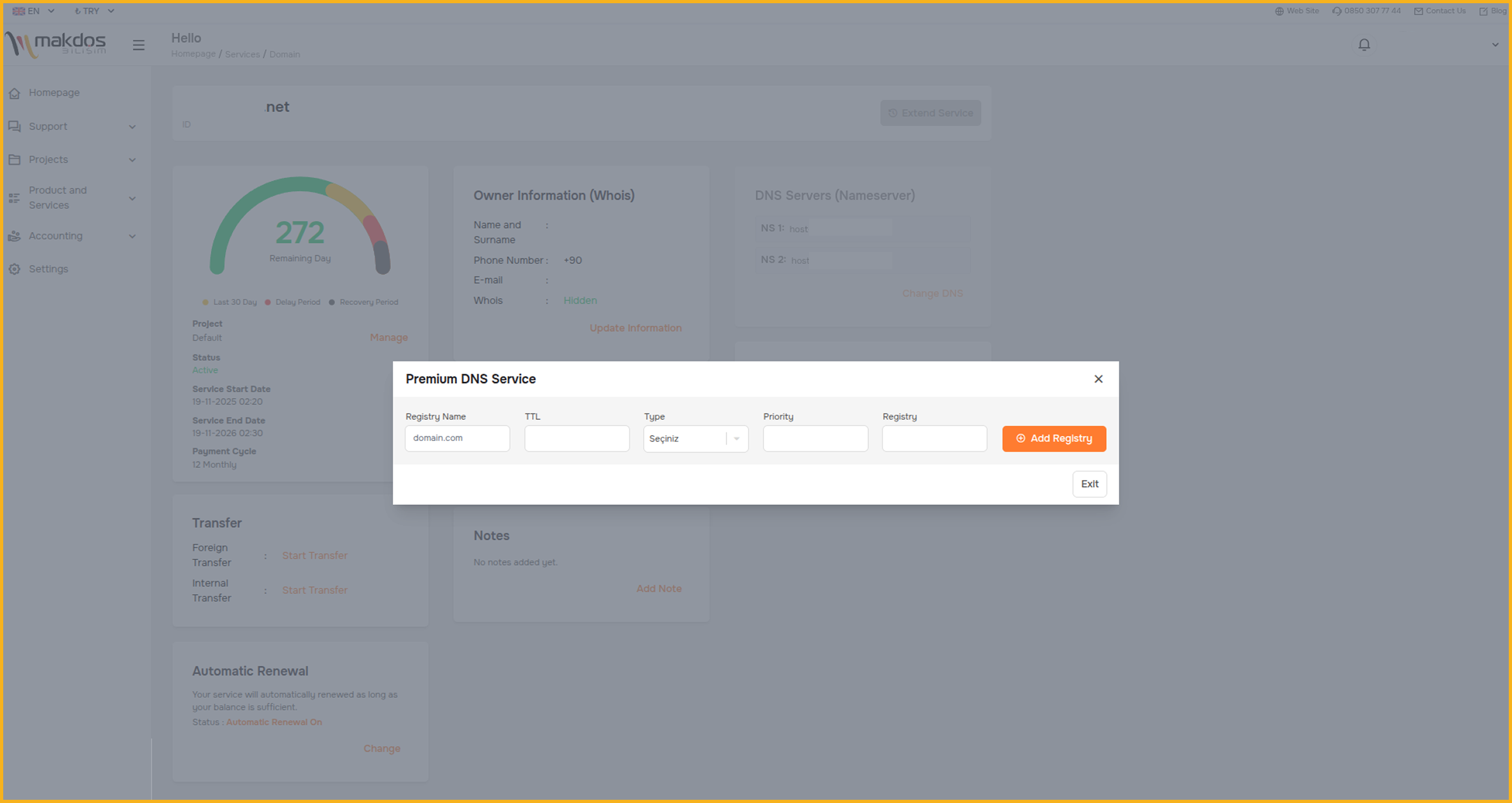
DNS and client settings to verify DNS essentials
- MX: Points inbound mail to the correct mail servers.
- SPF (TXT): Lists approved sending sources to protect your domain reputation.
- DKIM (TXT/CNAME): Enables message signing for higher trust.
- DMARC (TXT): Applies a policy based on SPF/DKIM results.
Common secure client ports
- IMAP: 993 (SSL/TLS)
- SMTP submission: 587 (STARTTLS/TLS)
After you publish DNS changes, send a test email and verify it arrives in the inbox not spam.
DNS propagation can take time
DNS changes don’t apply instantly everywhere. Depending on your TTL settings and caching, propagation can take minutes or up to 24–48 hours in rare cases. Plan migrations during low-traffic hours and keep access to the old mailbox until you confirm delivery is stable.
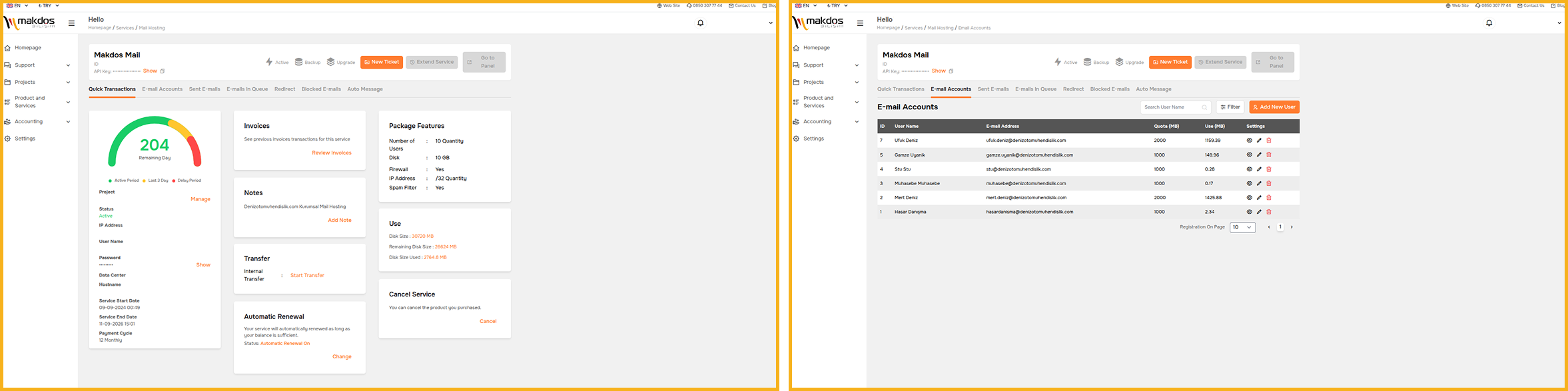
Step 3: Create mailboxes and email aliases
Start with role-based inboxes, then add personal mailboxes
For most teams, the best approach is to start with shared inboxes such as info@, sales@, and support@. Then create personal mailboxes like firstname.lastname@ for employees who communicate directly with clients. This keeps your workflow organized from day one.
After you configure DNS, you can start creating email accounts. Set up addresses for employees, teams, and shared inboxes.
Typical examples:
- info@yourdomain.com (general inquiries)
- sales@yourdomain.com (commercial inquiries)
- support@yourdomain.com (help desk)
- firstname.lastname@yourdomain.com (individual accounts)
Email aliases are useful when you need multiple addresses for one mailbox. For example, hello@ and contact@ can both forward to info@.
Step 4: Connect devices and apps (webmail, Outlook, mobile)
Most providers support common protocols and modern setup flows. You can typically use:
- Webmail in a browser
- Desktop apps like Outlook or Thunderbird
- Mobile mail apps on iOS/Android
Your provider will give you server names, login method, and the recommended ports.
Step 5: Test delivery and fix spam issues early
Send test messages:
- From your business email to a Gmail/Outlook address
- From a personal inbox to your business inbox
- With and without attachments
If you see spam placement, revisit SPF/DKIM/DMARC and make sure your sending sources match.
Free vs Paid Mail Hosting: Which Is Better?
There are two broad routes: starting “free-ish” and moving to a managed, paid platform.
Free or low-cost approaches (good for early-stage)
Common approaches include:
- Email bundled in web hosting control panels (basic mailboxes)
- Simple forwarding from a domain address to a personal mailbox
- Limited free tiers from select providers (policies change frequently)
These solutions may work at the beginning. However, they often have limits such as small storage space, basic security features, and limited support.
Paid mail hosting (recommended for business-critical communication)
A paid solution is typically more stable and more secure. Most plans include:
- Better email delivery tools and setup guidance
- Larger storage quotas
- Admin controls and centralized email management
- Backups and restore options
- Stronger filtering, virus protection, and anti spam defenses
- Faster customer support response times
When your business relies on email for orders, billing, or customer support, paid hosting provides better long-term security.
Email Hosting Options: How to Choose the Right Provider
There is no universal best provider only the best fit for your workflow, budget, and risk profile.
Option 1: Google Workspace and microsoft 365 (suite-based)
Suite platforms combine email with collaboration apps. They’re popular because they’re familiar and integrated.
They’re often a good fit when you need:
- Shared calendars and meeting tooling
- Deep integration with office apps
- Large organizations with standardized workflows
The trade off is cost (usually priced per user) and, in some markets, exposure to currency fluctuations.
Option 2: Managed corporate mail hosting (focused email solutions)
Choose managed hosting for simple email, strong support, and clear pricing.
This approach is often attractive to:
- SMEs and e-commerce brands that need reliability without complexity
- Agencies that manage multiple domains
- Teams that want fast onboarding and clear support channels
Option 3: Self-hosted email servers (high control, high responsibility)
Running your own email servers on a VPS/VDS offers control, but it also creates extra work:
- IP reputation management
- Spam filtering tuning
- Security patching and monitoring
- Backup, archiving, and compliance tasks
Unless you have strong in-house expertise, self-hosting can cost more in time and risk than it saves in license fees.
Technical Checklist for Reliable Mail Hosting
If you want mail hosting to “just work,” focus on these technical pillars. The best mail hosting setups are the ones you can standardize and repeat across every domain you manage.
Email verification and Reputation
- MX routing must be correct
- SPF/DKIM/DMARC must match your actual sending sources
- Avoid sending bulk newsletters from the same infrastructure as transactional mail when possible
Encryption and secure access
- Use SSL/TLS for IMAP/SMTP
- Enforce strong passwords and enable 2FA when available
- Prefer modern verification methods in clients
Filtering and threat protection
A good provider should offer layered defense:
- Anti spam filtering for junk mail
- Virus protection for malicious attachments
- Rate limiting and anomaly detection for compromised accounts
Backup, archiving, and recovery
Email contains contracts, approvals, and customer history. Make sure your provider has clear backup policies and recovery processes.
Uptime and SLA
Even “small” downtime can disrupt sales and support. Evaluate whether the provider offers a meaningful SLA and redundant infrastructure.
Common Mistakes When Setting Up Professional Email Addresses
These mistakes are common and preventable.
1) Poor naming conventions
Avoid “nickname” addresses. Keep formats consistent:
- firstname.lastname@
- department@ (sales@, support@)
- info@ for general inquiries
2) Weak passwords and no 2FA
Passwords like “Company123” are not “good enough.”
Treat email accounts as high-value assets
Compromised mailboxes can lead to invoice fraud, data leaks, and customer trust damage. Enforce unique, strong passwords, enable 2FA, and immediately disable accounts when an employee leaves.
3) Skipping DNS verification
Without SPF/DKIM/DMARC, your email can be flagged as suspicious. That hurts email delivery and brand reputation.
4) Ignoring backups and retention
If you don’t have backup/restore, one deletion (or one compromised account) can erase years of history.
5) Mixing personal and company communication
Define a simple policy: business communication stays on company accounts, and personal use is limited.
Why Makdos Mail Hosting Works Well for Growing Teams
Makdos E-Mail Hosting provides reliable mail hosting with local support. It’s easy to deploy and simple to manage.
Makdos is a Türkiye based hosting provider founded in 2015. The company runs services across three data centers, each with strong network capacity. An in-house CRM system keeps setup, support, and account management organized. Makdos offers a mobile app for managing hosting services.
Key benefits often valued by SMEs, agencies, and e-commerce teams:
- Fast onboarding: Mailboxes are set up quickly with guided configuration.
- Simple admin experience: A clean panel supports daily email management tasks (users, quotas, forwarding).
- Security first defaults: Encrypted connections, strong filtering, and practical controls that don’t require an in-house IT team.
- Backup and restore: Regular backups reduce the impact of accidental deletions.
- Always on help: Email impacts revenue. Support must respond fast.
- Local infrastructure: Keeping mail close to your users can reduce latency and make daily management easier.
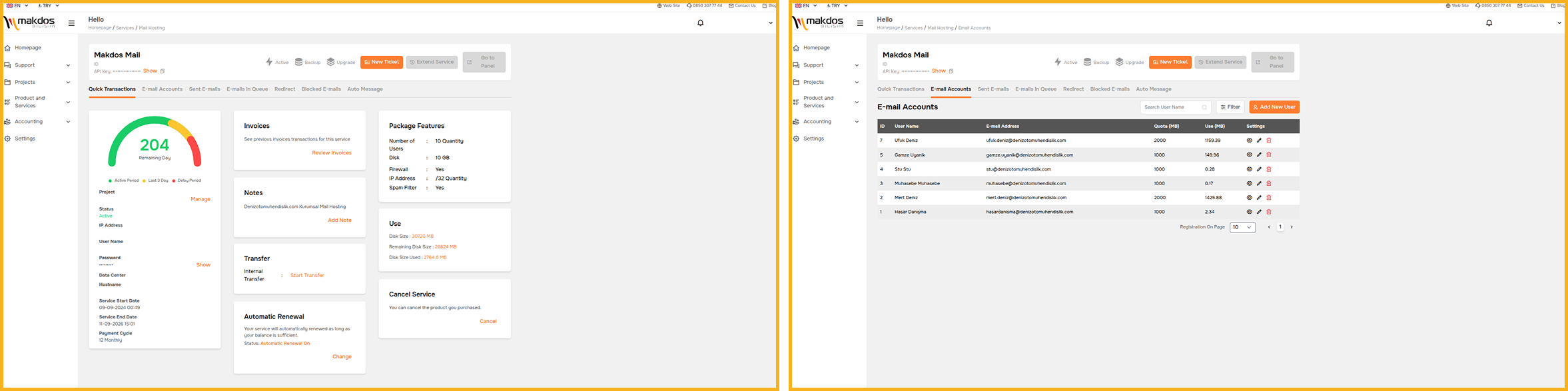
If you use Makdos for domains or hosting, you can also use Makdos mail hosting. This simplifies provider management and keeps your email system unified.
Business Email Security Playbook (for SMEs and e-commerce)
Mail hosting reduces daily management work, but your security still depends on habits and policies.
Train teams on phishing and fraud patterns
- Verify “invoice change” requests out-of-band
- Hover over links before clicking
- Treat unexpected attachments as suspicious
Secure devices and access
- Keep OS and mail apps updated
- Enforce screen locks on mobile devices
- Consider VPN when accessing email over public networks
Control permissions and offboarding
- Limit admin access to a small group
- Remove access immediately when roles change
- Audit shared inbox access quarterly
Protect sensitive content
- Encrypt high risk attachments or use protected sharing links
- Consider DLP rules if your organization handles regulated data
Practical Recommendations for Small Business Owners and Agencies
If you’re a business owner or you manage email for clients, these steps keep things simple and scalable.
- Start with 3–5 core inboxes (info@, sales@, support@, billing@).
- Standardize naming conventions on day one.
- Use email aliases to reduce inbox sprawl.
- Choose a mail hosting setup that can scale as your business grows.
- Separate marketing mail from essential business emails when possible.
If you send marketing messages (email newsletters, SMS, calls) in Türkiye, permission management can become a compliance requirement. This section is for general information, not legal advice but it’s worth planning early.
Makdos IYS (Message Management System)
Conclusion
Mail hosting is one of the fastest upgrades you can make to your brand’s credibility. Control your domain. Set up DNS properly. Launch professional inboxes with ease.
If you want a managed, business-ready setup with clear support paths, consider Makdos mail hosting for your team.