

A professional inbox does more than send and receive messages. It influences how customers see your brand. It also affects how your team manages daily communication and how securely your company stores business records.
For SMEs, e-commerce teams, agencies, and large corporate brands, a domain-based mailbox is often the first step. It helps create a more structured and professional email system.
That is why many companies move away from free email services. Instead, they choose solutions built around custom domains, centralized control, and stronger security. Once the right email hosting foundation is in place, managing email becomes much easier. Outlook then serves as a practical interface for daily email use on Windows, Mac, iPhone, and Android.
What Is Business Email Hosting and Why Does It Matter?
Business email hosting is a service that lets you create mailboxes on your own domain. It also allows you to manage those business email accounts without relying on a generic email provider.
In simple terms, it gives your team branded email accounts such as sales@yourcompany.com or info@yourcompany.com, while also giving administrators more control over storage, permissions, security, and reliability.
Business email address vs free email
A business email address looks more credible than a personal address from a free email platform. When clients see a branded sender identity, they immediately understand that your company takes communication seriously. This matters even more for small businesses that are trying to build trust quickly.
A branded mailbox also improves ownership. When an employee leaves, the company still controls the inbox, the forwarding rules, and the message history. That makes email management cleaner and reduces the risk of losing important conversations.
Why custom domains build trust
Your domain is part of your identity. With custom domains, you can align your website, contact forms, and employee signatures under one brand. That consistency helps customers remember you and reduces confusion. If you do not yet have a domain, your first step is to secure one that fits your company name and communication style.
Where Outlook fits into a modern email solution
Outlook is not the hosting layer itself. It is the email client your users open every day. That distinction matters.
Email hosting services provide the servers, storage, spam filtering, and account management. Outlook then gives your staff a familiar interface for sending, receiving, organizing, and searching email.
For many teams, Outlook remains the preferred front end. It works well with business email addresses, supports multiple accounts, and keeps desktop and mobile workflows consistent. It can also sit alongside Microsoft 365 if your company already uses that stack for collaboration or cloud storage.
What You Need Before Setting Up Outlook
Before you start Outlook setup, collect the details from your email hosting provider or admin panel. This avoids most failed connection attempts.
Email accounts, passwords, and server details
You usually need:
- your full email address
- the mailbox password
- the incoming mail server name
- the outgoing SMTP server name
- the preferred protocol, usually IMAP or POP3
- the correct encryption and port details
For many providers, the username is the full mailbox name and the incoming and outgoing server values are similar. Always use the server names documented by your provider or shown in your control panel.
IMAP vs POP3 for existing email and device sync
IMAP and POP are two different ways to access a mailbox. Choose IMAP when you plan to use the same inbox on multiple devices. Microsoft notes that IMAP is the recommended method when you need to check email from more than one device.
If your team checks the same inbox from a laptop, phone, and tablet, choose IMAP whenever your provider supports it. It keeps the mailbox view consistent across devices. This also makes it easier to use the same email account everywhere.
POP3 still appears in some email hosting options, but it is more suitable for older or single-device scenarios. POP3 may still be relevant in some cases. This is especially true if users need to import emails from a previous system, archive mail locally, or manage all mail in one place. For most growing teams, however, IMAP is the safer default.
Security features, spam filtering, and identity verification basics
A strong setup is not only about ports and passwords. Your provider should also offer security features such as spam filtering, backup support, account controls, and identity verification guidance. Enable SMTP login verification for sending email. At the domain level, records such as SPF, DKIM, and DMARC help protect your reputation and reduce spoofing risk.
If you are comparing email hosting services, do not look only at mailbox size. Review advanced anti spam tools, restore options, security features, and customer support quality as part of the decision.
Recommended Outlook connection settings
- Recommended protocol: IMAP for most multi-device teams
- Common incoming examples: IMAP 993 with SSL/TLS, or POP3 995 with SSL/TLS
- Common outgoing examples: SMTP 587 with TLS/STARTTLS, or 465 with SSL if your provider specifies it
- Username format: Full email address
- SMTP login verification: Enabled
- Best practice: Use the exact server names and port values provided by your email hosting provider
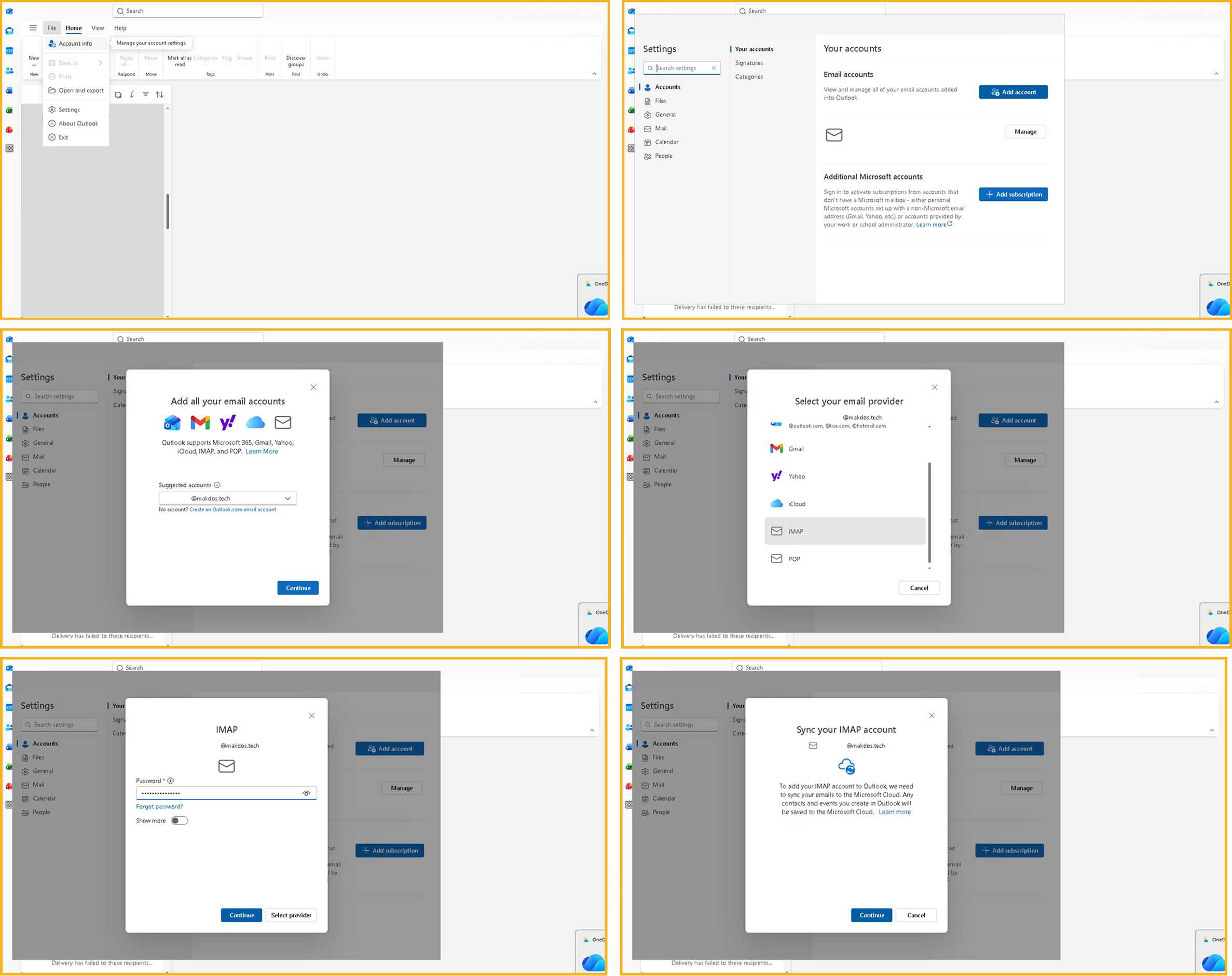
How to Set Up Email Hosting in Outlook on Windows
The basic setup flow in Outlook for Windows is straightforward. However, the screen labels may vary slightly. This depends on whether the user is using classic Outlook or the newer Outlook interface.
Add the account manually
Open Outlook and go to the account area. In the current Microsoft guidance for the new Outlook on Windows, the process starts in View settings or File > Account info. From there, go to Accounts > Your accounts > Add Account. If Outlook does not detect your provider automatically, choose the manual route and continue with your mailbox details.
In some troubleshooting cases, Microsoft also guides users to open Advanced options. From there, they can choose Let me set up my account manually, and then select POP or IMAP for third-party mailboxes.
Outlook setup screens can change between classic Outlook, new Outlook, and different Microsoft 365 builds. The core information stays the same, but button labels may differ slightly from one installation to another.
Enter incoming and outgoing server settings
Once manual setup is open, select IMAP in most business cases. Then enter your mailbox password, incoming server, outgoing SMTP server, and the required encryption or port data. Use the exact values provided by your hosting panel. Do not guess the server name if your provider documents a custom hostname.
If you use a custom email address on a standard email hosting plan, the username follows a simple rule. In most cases, it is the full email address. Enable outgoing server login verification if Outlook asks for it.
Test send/receive and fix common connection issues
After you save the account, send a test message and then receive it on the same mailbox or another address. If mail does not move correctly:
- Verify the password
- Confirm that the server names are correct
- Check whether the incoming and outgoing ports match provider documentation
- Confirm SSL/TLS or TLS settings
- Verify that SMTP authentication is enabled
If a mailbox still fails after that, re-open the account settings and compare every value one by one. Many connection errors come from a single typo in the server line or a mismatch between SSL and port selection.
How to Set Up Outlook on Mac, iPhone, and Android
The process works the same outside Windows. Add the account first, identify the provider type, and then enter the server settings correctly.
Outlook setup on Mac
In Outlook for Mac, Microsoft’s documented flow starts from Outlook > Settings, then Accounts > Add Account. Enter the email address, select Continue, and follow the prompts. If Outlook cannot detect the mailbox automatically, use the manual setup option. Then enter the server details provided by your email hosting provider.
Mac users often prefer IMAP for the same reason Windows users do. It keeps the inbox state synchronized across devices. After setup, send a test message to confirm both incoming and outgoing traffic work as expected.
Outlook setup on iPhone and iPad
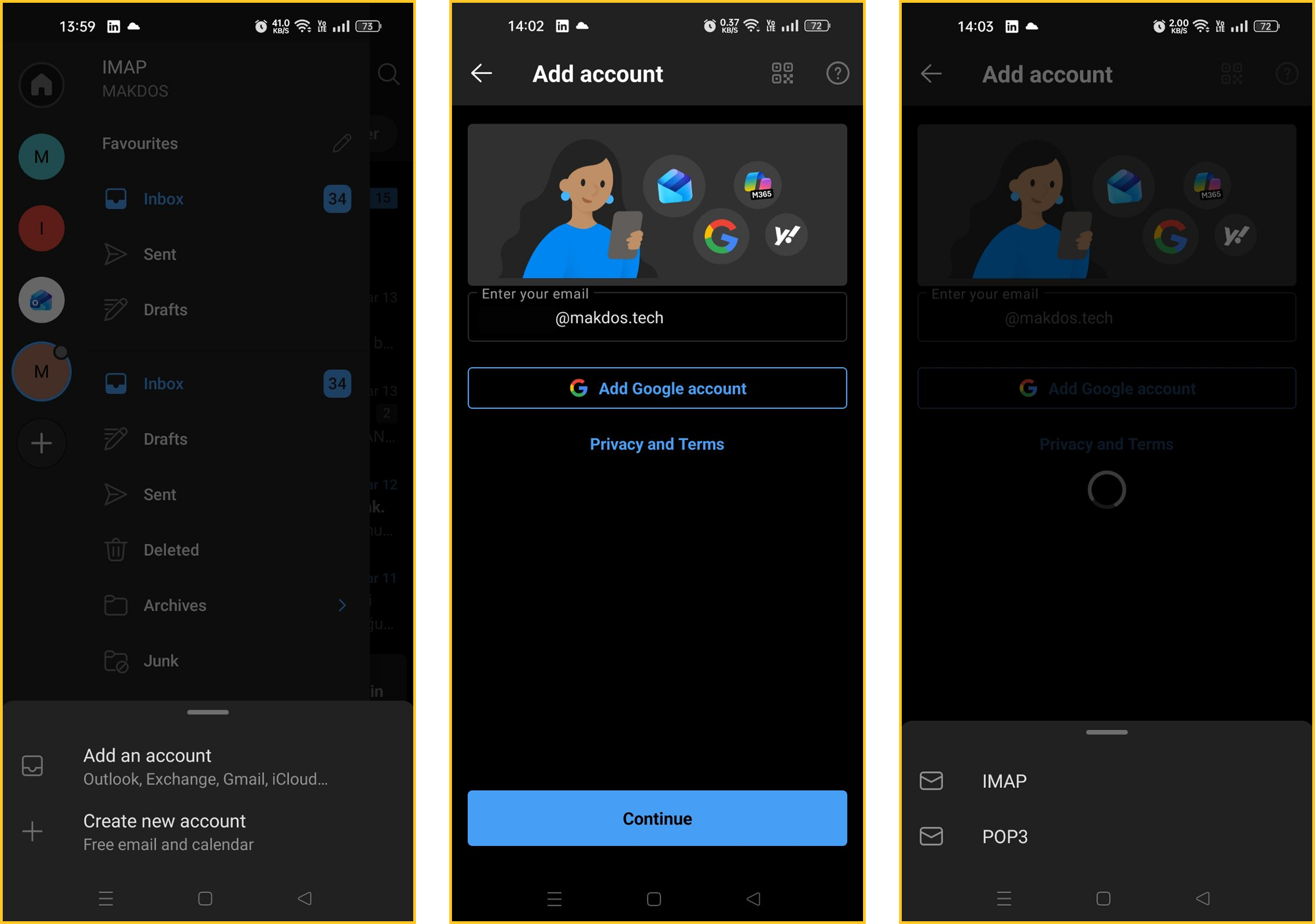
In Outlook for iOS, Microsoft’s manual IMAP path begins under Settings > Accounts > Add Account > Email Account. After entering the email address, choose IMAP if the provider selection screen appears. Then enable Advanced settings and enter the password and server details.
One important detail to remember: in Outlook for iOS, IMAP or POP accounts only sync email. Calendar and contacts do not sync in the same way as they do with Exchange or Microsoft 365 accounts. For many businesses, that is perfectly acceptable if the immediate need is reliable email hosting inside Outlook.
Outlook setup on Android
The Android flow is similar. Microsoft’s current guidance points users to Settings > Add Account > Add Email Account, then to choose IMAP or POP3 when asked for a provider. Advanced settings lets you enter the password and server information manually.
For mobile users, IMAP is almost always the better choice. Use IMAP when the same business mailbox runs on Outlook desktop, a browser, and a phone to keep everything synchronized. POP3 is still available, but it is rarely the best option for mobile-first teams.
How to Create and Manage Business Email in Makdos
If you use Makdos for email hosting, the setup process starts before Outlook. First, create the mailbox in the control panel, then connect it to the device.
Create a custom email address from the Makdos panel
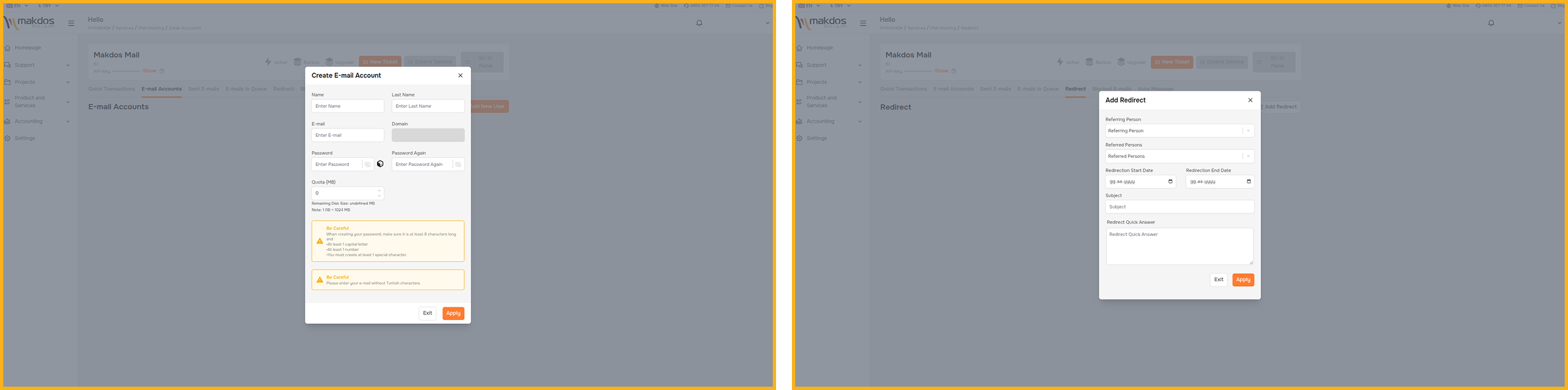
To start, sign in to your Makdos customer panel, go to the corporate mail section, and create a mailbox for your domain. This is where you define the local part of the address, such as info, sales, support, or a named user account.
That approach is especially useful for companies that want a custom email address for each team or department. It also makes handover easier when responsibilities change.
Manage email accounts, storage, and redirects
Once the mailbox exists, you can manage email accounts from one place. Typical tasks include resetting passwords, adjusting mailbox size, creating forwarders, and reviewing account status. Good email management is not just about adding users. It also means managing inbox ownership, message flow, and storage use.
If you are migrating from another provider, plan the transition carefully. Some teams keep the existing email system active during the transition. After the new account is stable, they import emails into the new workflow.
Use Outlook with your existing email setup
After you create the mailbox in Makdos, setting up Outlook becomes easier. This is because the account already exists on the server. All the user needs to do is connect with the correct details.
Why Makdos Is a Strong Email Hosting Option
The right provider should give you more than mailbox space. It should help your team communicate consistently, recover from mistakes, and scale without unnecessary complexity.
Advanced anti spam, backups, and security features
Makdos designs its corporate mail service around practical business needs. These include 24/7 customer support, spam filtering, backup support, and security-focused account management. Some organizations receive many inbound messages from forms, vendors, and customers. Advanced anti-spam protection helps reduce noise and keeps users more productive.
That is important because email hosting is part of your business infrastructure, not just a utility. Missed messages, false deliveries, and inbox clutter all create business risk.
Plans including business needs for small businesses and growing teams
Different teams need different mailbox models. Small businesses may start with only a few email accounts. Agencies and e-commerce brands usually need more than basic email accounts.
They often rely on role-based inboxes, shared work-related addresses, and simple onboarding for new staff. This is where plans including backup, spam controls, and support make more sense than a minimal low-cost inbox.
Makdos also supports companies that want a business email address on their own domain. It does this without requiring every user to adopt a full productivity suite. That makes it one of several valid email hosting options depending on budget, structure, and workflow.
Integration with web hosting, cloud storage, and related services
Email does not live in isolation. Many businesses also need domain registration, DNS control, SSL, and web hosting around the same brand. If your website and business inboxes sit under the same business umbrella, administration becomes simpler.
If your company uses Microsoft 365 for documents or storage, Outlook can still be your main email client. At the same time, you can compare standalone email hosting options with suite-based licensing. The right answer depends on whether you mainly need email, or a broader collaboration stack.
Common Outlook and Email Hosting Mistakes to Avoid
Many setup failures are not major technical problems. They are simple mismatches that are easy to fix once you know where to look.
Wrong ports, encryption, and SMTP authentication
The most common issue is entering the wrong port or choosing the wrong encryption type. Another frequent problem is forgetting outgoing server authentication. If SMTP auth is disabled, sending fails even though incoming mail may still work.
POP3 sync problems across multiple devices
POP3 is not inherently wrong, but it causes confusion when teams expect the same message state everywhere. A user deletes a message on one device, but another device still behaves differently. That is why IMAP is usually the cleaner choice for shared, active, or mobile workflows.
Missing DNS and email delivery basics
A mailbox can be technically connected to Outlook and still perform poorly if the domain is not configured correctly. Records such as SPF, DKIM, and DMARC help receiving servers trust your mail. Without them, messages may land in spam or be easier to spoof.
Do not treat DNS authentication as optional. Weak or missing sender records can hurt email deliverability. They can also increase spoofing risks and reduce trust in your business email address.
Which Email Hosting Options Fit Your Business Best?
There is no single answer for every company. The best option depends on several factors. These include team size, workflow, compliance requirements, and whether users need only email or a broader collaboration platform.
When small businesses need a simpler setup
For many small businesses, the best place to start is a simple hosted mailbox on a branded domain. Outlook can then serve as the daily email client. This keeps the workflow professional without creating unnecessary licensing overhead.
When Microsoft 365 may still be part of the workflow
If your team needs document collaboration, shared calendars, Teams, or Microsoft identity features, Microsoft 365 may still be necessary. In that model, Outlook is both the client and part of the broader platform. Some companies mainly need reliable business email. In these cases, a focused email hosting plan often offers easier cost control.
How to choose between different email hosting services
When comparing providers, ask:
- How easy is account creation and email management?
- Are spam filtering and backup support included?
- Is customer support responsive when delivery issues happen?
- Can the service scale from a few users to many?
- Does it work cleanly with custom domains and Outlook?
- Can you keep or migrate an existing email setup with minimal downtime?
The strongest provider is not always the one with the longest feature list. It is the one that supports your actual communication workflow reliably.
Final Thoughts
Create the mailbox on a reliable platform first to get the best results with email hosting and Outlook. Then connect it using the correct settings. Once that foundation is in place, managing daily communication becomes much easier. It also becomes more professional and secure across desktop and mobile devices.
For growing teams, agencies, e-commerce operations, and corporate brands, the goal is simple. Create stable email accounts, protect deliverability, and keep administration under control. This is where a provider like Makdos adds value. It offers business-focused hosting, centralized controls, and support across the broader hosting environment.
For a custom email that works smoothly in Outlook, reviewing Makdos email hosting plans is a smart next step.
This guide explained what business email hosting is and why IMAP is usually the best choice for Outlook. It also explained how to configure Outlook on Windows, Mac, iPhone, and Android. In addition, it showed how Makdos helps businesses manage branded mailboxes with stronger control.
Explore Makdos email hosting to launch or improve your business email setup. It offers Outlook-friendly configuration, support, and scalable account management.