

For SMEs, e-commerce brands, agencies, and corporate teams, a proper email hosting setup offers clear benefits. It protects inbox delivery, lowers spoofing risk, and keeps daily email management stable.
In this guide, you’ll learn how corporate email works from start to finish. We explain what you need to prepare and which DNS records are essential. We also show how to access webmail and connect your business email to Outlook and mobile apps.
What You Need Before You Start
Before touching DNS, make sure these basics are ready:
A domain name you control (this becomes your @yourcompany.com identity)
An email hosting service you’ve chosen (so you know what records to add)
Access to your DNS zone (domain registrar DNS, Premium DNS, Cloudflare, cPanel, etc.)
A shortlist of professional email addresses you want to create first:
- info@, sales@, support@, billing@, plus personal mailboxes
- Plan for email aliases early to keep things organized
f your email currently “comes with” web hosting, that can work initially. As your small business grows, your infrastructure needs change.
Separate your email and website hosting environments. This improves reliability and gives you stronger control, especially when email supports daily operations. (You can keep your site on one provider and move email to another. DNS is the bridge.)
Why DNS Is the Backbone of Corporate Email
Email hosting relies on DNS to answer one core question for the internet:
Decide where to deliver email for this domain. Define who can send mail using this domain.
That’s why DNS issues are behind most corporate email problems. They cause messages to fail delivery, land in spam, or fail security verification.
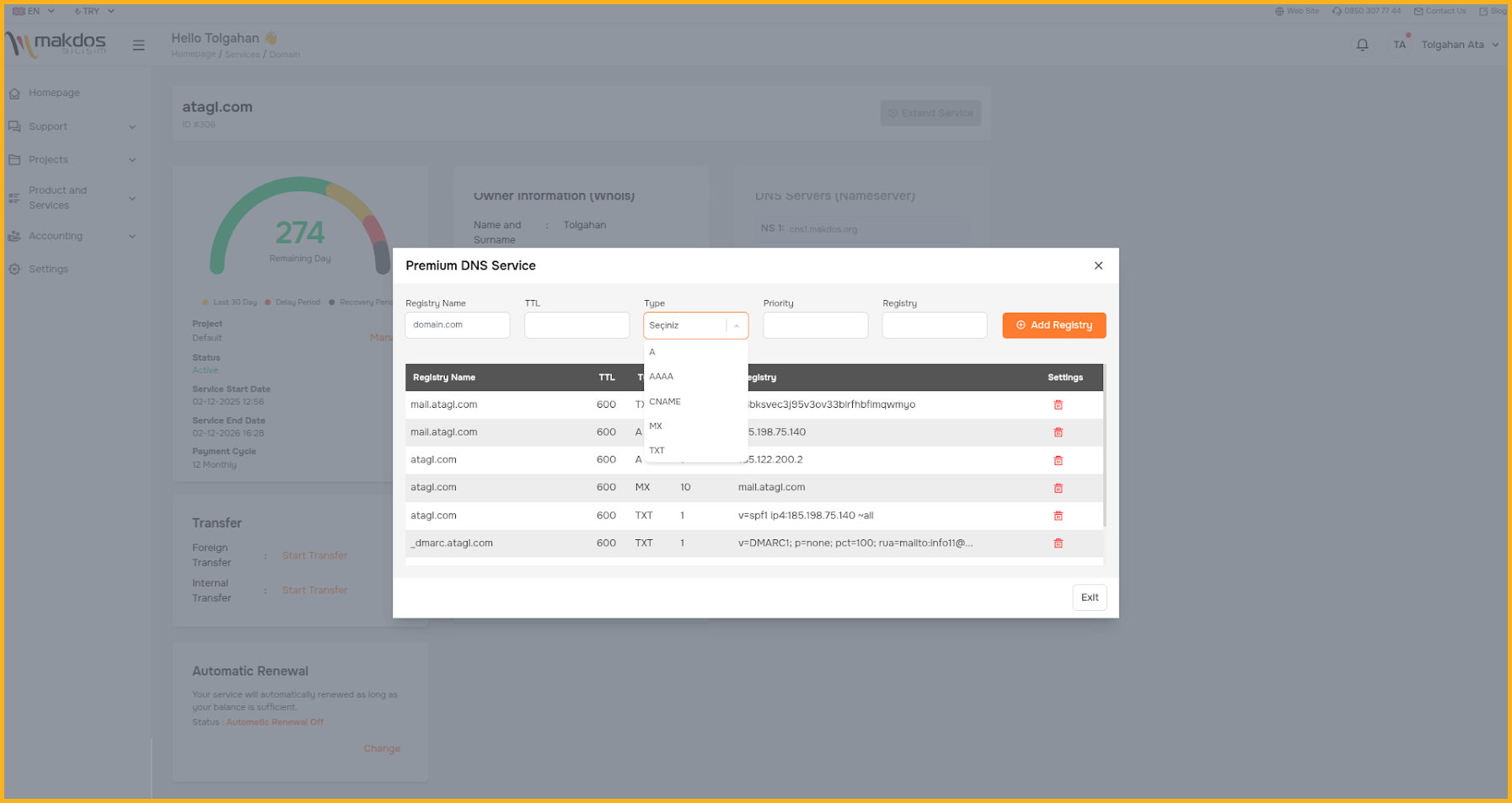
Here are the DNS record types you’ll typically see during setup:

Step-by-Step DNS Setup for Email Hosting
1) Add (or Update) MX Records
MX records tell the world which servers should receive incoming mail for your domain.
A clean approach:
- Open your DNS manager.
- Locate existing MX records (if any).
- Add your provider’s MX records exactly as documented.
- Remove old or unused MX records when migrating. Otherwise, email delivery may split in unexpected ways.
Most providers use multiple MX records for redundancy, with priorities such as 10/20/30. Lower number = higher priority.
When switching providers, don’t “stack” old and new MX records unless the provider explicitly recommends it. Mixed MX records can cause intermittent delivery failures and hard-to-debug routing issues.
2) Publish an SPF Record (TXT)
SPF is one of the most important controls for reliable inbox delivery and spoofing prevention. It informs receiving servers which systems can send emails for your domain.
A common SPF structure looks like this:
v=spf1 mx include:provider.example ~all
What these parts mean:
- v=spf1: SPF version
- mx: allow your MX servers to send mail
- include:...: allow your provider’s sending infrastructure
- ~all: “soft fail” for everything else (flag as suspicious rather than hard reject)
As your workflow grows to include CRM, website forms, e-commerce platforms, and support tools, you must update your SPF record accordingly. If you don’t, legitimate system emails may start landing in spam.
Do not create multiple SPF TXT records for the same domain. SPF evaluation fails when there is more than one SPF record. Combine all rules into a single TXT value.
3) Enable DKIM (TXT or CNAME)
DKIM adds a cryptographic signature to outbound messages. Receivers verify that signature using the public key you publish in DNS.
In practice, your provider generates DKIM and gives you either:
- a TXT record to publish under something like default._domainkey, or
- CNAME records pointing to provider-managed keys
Once DKIM is live, your messages are more trusted because integrity and sender responsibility are easier to validate.
4) Add DMARC (TXT) for Policy + Reporting
DMARC ties SPF and DKIM together and defines what receivers should do if verification fails.
A basic DMARC record looks like:
Host: _dmarc
Value: v=DMARC1; p=quarantine; rua=mailto:reports@yourcompany.com
- p=none: monitor only (no enforcement)
- p=quarantine: place suspicious mail into spam/junk
- p=reject: reject failing mail outright (strictest)
A practical rollout for most teams:
- Start with p=none to collect reports.
- Move to p=quarantine once aligned.
- Consider p=reject when you’re confident.
DMARC protects your domain, but wrong SPF or DKIM settings can block real emails. Move gradually.
Verify DNS Changes (Don’t Skip This)
DNS propagation is not instant. Depending on TTL and caching, changes may take hours sometimes up to a day.
Ways to validate quickly:
- Use dig / nslookup for MX and TXT checks
- Use your provider’s DNS checker / setup wizard
- Send a test message to a mailbox on another provider and review headers
Quick validation checklist:
- MX records point only to the active provider
- Exactly one SPF record exists
- DKIM returns a valid key for the expected selector
- Publish DMARC at _dmarc and make sure the record format is correct.
Access Corporate Email via Webmail
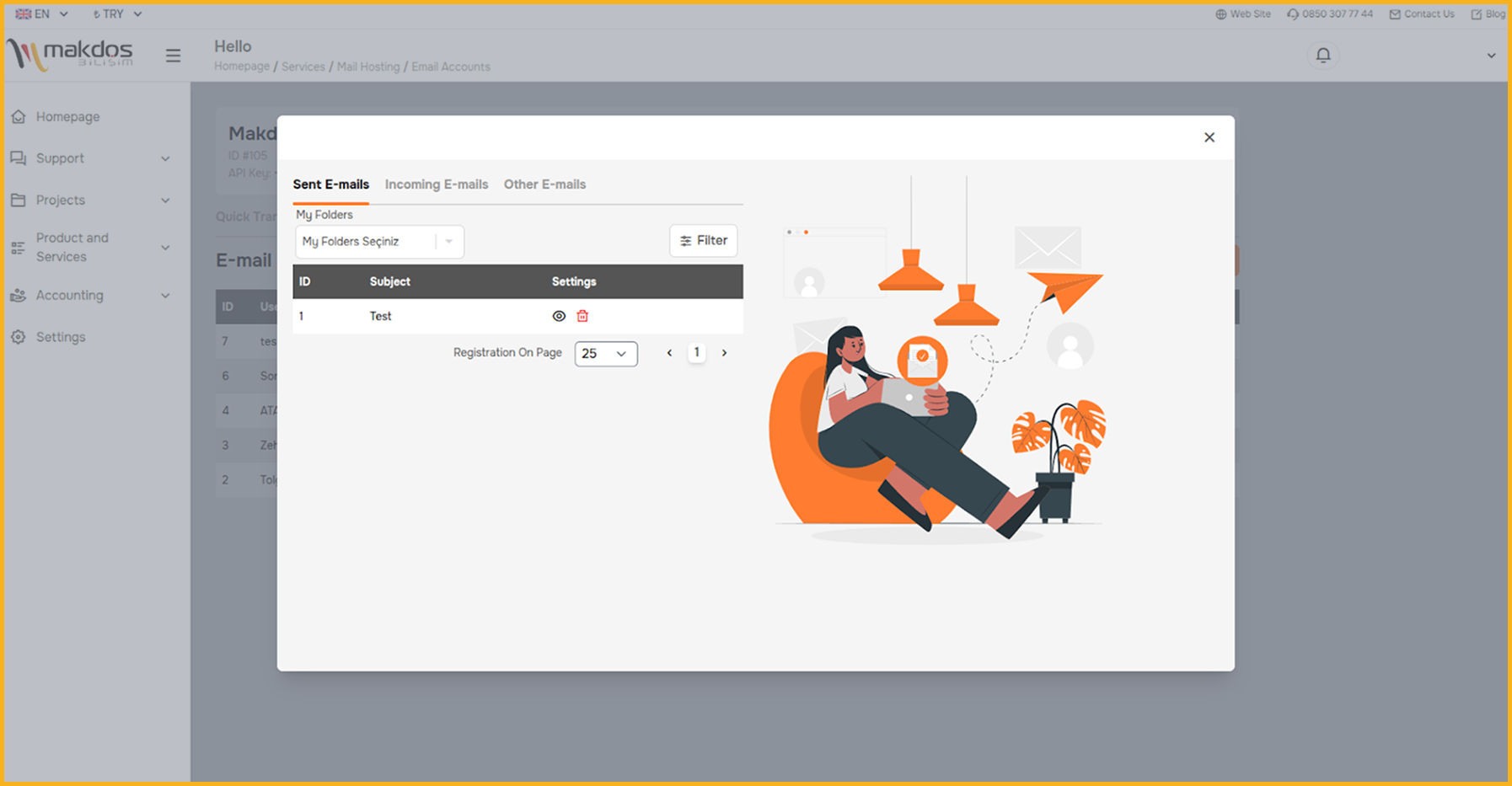
Once DNS is correct and mailboxes are created, daily usage begins. Most email hosting providers offer webmail, which lets you manage email from a browser no app installation required.
Typical webmail steps:
- Open your provider’s webmail login page.
- Sign in with your custom email address and password.
- If you received a temporary password, change it immediately.
- Confirm you can send and receive.
Webmail is ideal when traveling or switching devices. But for many teams, a dedicated desktop or mobile client is more convenient day-to-day.
Connect to Outlook, Apple Mail, Gmail App, and Other Clients
To use business emails in an app, you’ll configure incoming/outgoing server settings.
IMAP vs POP3 (Which One Should You Use?)
- IMAP keeps mail on the server and syncs across devices. Best for most teams.
- POP3 downloads messages and may remove them from the server. Best for single-device workflows (less common today).
Typical Settings You’ll Need
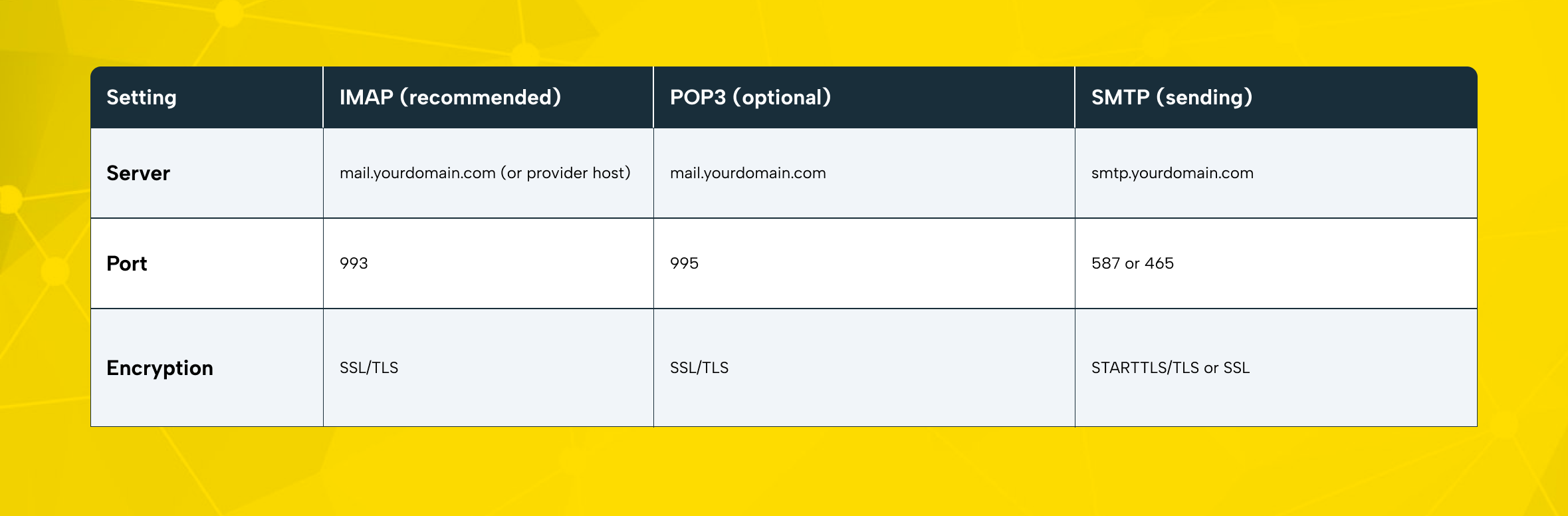
Identity error? Verify your setup. Verify that the hostname you entered matches the server configuration.
It usually does not match the name on the SSL certificate. In that case, use the exact server names your provider documents.
This setup is where the practical benefit becomes clear. One inbox syncs across phone, laptop, and webmail. If you archive or delete a message on mobile, it updates everywhere (with IMAP).
Email Hosting Options: Choose What Fits Your Business
There are many email hosting options. The “best” choice depends on your team size, compliance needs, and how much technical ownership you want.
Here’s a practical evaluation checklist for an email hosting service:
- Reliability: stable infrastructure and redundancy (email must stay online)
- Security stack: Secure login protection + malware scanning
- Anti spam: strong protection plus configurable spam filters
- Admin control: easy onboarding/offboarding, shared inboxes, permissions
- Support: responsive customer support when delivery problems happen
- Scalability: the email hosting plan should expand smoothly as your business grows
- Clarity: transparent limits and features (what plans include, what is add-on)
Also consider whether you need:
- Shared inboxes (support@)
- Routing rules
- Retention/archiving
- Delegated access
- Inbox tools
How Makdos Supports Corporate Email Hosting
Looking for a managed solution without weeks of DNS and inbox troubleshooting? Makdos delivers business-ready email services designed for stable day-to-day performance.What teams usually care about most:
- Centralized email management through a customer panel
- Business-focused security layers, including virus protection
- Strong anti spam protection to keep inboxes usable
- A support path when inbox delivery problems appear.
- Room to scale without replatforming
If you already use Makdos for domains or hosting services, keeping email under the same umbrella can simplify administration. You can manage multiple mailboxes and configure routing rules in one place. This also keeps service ownership clearly defined, which is especially helpful for agencies handling multiple client domains.
How to Get a Business Email Address: Mail Hosting Step-by-Step
For a broader walkthrough that also compares approaches and planning, you can also reference our related guide.
What is Email Hosting and Why is it Important?
If you’re still deciding whether dedicated email hosting is worth it, this explainer breaks down the business case.
Common Mistakes That Break Corporate Email
- Leaving old MX records active after switching providers
- Creating multiple SPF records instead of merging rules
- Publishing DMARC with strict policy too early
- Using the wrong server hostnames in clients (SSL mismatch)
- Forgetting third-party senders (CRM, forms, e-commerce platform) in SPF/DKIM alignment
Conclusion
A clean email hosting setup is not just “IT hygiene.” It’s brand infrastructure. Once you configure DNS and authentication correctly MX, SPF, DKIM, and DMARC you improve email reliability. You receive stable inbound delivery, better inbox placement, and stronger protection against domain abuse.
Create a short list of the mailboxes you need now, validate DNS, and standardize client settings across your team. Then revisit security and policies as usage expands.
If you want a guided setup with clear support paths, consider Makdos corporate email hosting. It’s a practical way to launch professional business emails without managing your own email server.