

Many businesses still rely on Windows Server 2016 for a wide range of core operations. These often include internal applications and accounting systems. They may also cover file services and Remote Desktop Services.
In addition, they can include SQL Server workloads, Active Directory, and e-commerce back-office tasks. In many cases, these systems are stable enough that teams avoid touching them. However, stability alone does not make a server environment secure or future-ready.
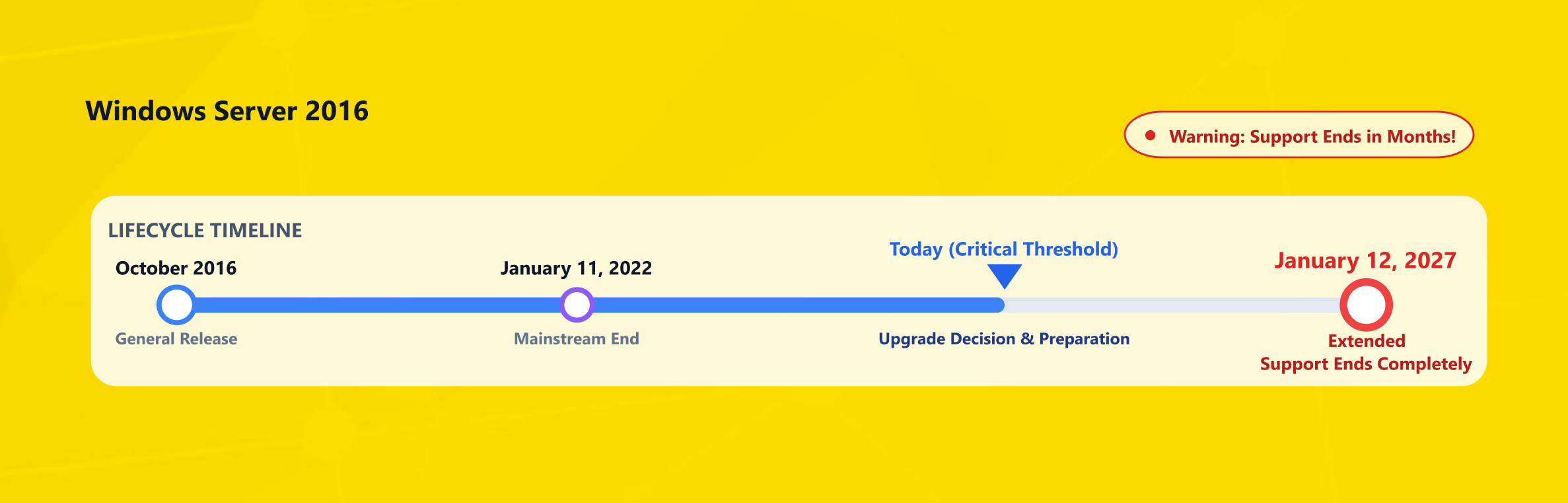
The real issue is lifecycle risk. Microsoft lists Windows Server 2016 under the Fixed Lifecycle Policy. Mainstream support ended on January 11, 2022, and extended support is scheduled to end on January 12, 2027. After that point, organizations must plan around a different security and operational model.
For SMEs, agencies, e-commerce companies, and corporate brands, the question is not simply “Can this server still run?” The better question is: “Can this infrastructure continue to support security, compliance, performance, and business continuity expectations?” This article helps you answer that question and choose the right next step.
Why Windows Server 2016 Support Status Matters
Windows Server 2016 has been a dependable operating system for many business workloads. It introduced important improvements for virtualization, security, containers, and software-defined infrastructure. But every server operating system has a defined lifecycle, and that lifecycle directly affects patch management, compatibility, and operational risk.
During mainstream support, Microsoft provides security updates, non-security updates, feature improvements, and general support options. During extended support, the focus narrows. Security updates remain available, but the product is no longer in its full development and improvement phase. For Windows Server 2016, this extended support window ends on January 12, 2027.
That date is important because servers usually run business-critical workloads. A desktop operating system can often be upgraded quickly. A server, however, may host database services, domain roles, ERP integrations, custom applications, APIs, or payment-related infrastructure. These environments require planning, backup validation, testing, and a clear rollback strategy.
Microsoft has introduced Extended Security Updates for Windows Server 2016. It also provides Azure Arc-related options for on-premises and multi-cloud environments. However, ESU should be treated as a bridge, not a modernization strategy.
Microsoft’s own messaging presents this period as a chance to plan the next step. That may mean upgrading to a newer Windows Server release or evaluating migration options.
Extended Security Updates can help reduce short-term exposure. However, they do not remove the need for a server migration plan. ESU is useful when business-critical applications need more time. However, it should not become a reason to postpone infrastructure renewal indefinitely.
Security and Business Risks of Staying on Windows Server 2016
The most obvious risk of staying on Windows Server 2016 is the gradual loss of security coverage. Once a server operating system reaches the end of its support lifecycle, newly discovered vulnerabilities become harder to manage. Even if the server continues to operate normally, its security posture weakens over time.
For businesses handling core systems and customer data, this creates a real operational risk. The consequences can affect both systems and daily operations. The impact is not only technical; it can affect daily operations as well.
Vulnerability management becomes more difficult over time. The operating system may no longer receive the updates needed to close newly discovered gaps.
This affects more than the IT department. A legacy operating system can create problems for compliance requirements, cyber insurance evaluations, vendor audits, and customer security questionnaires. Unsupported infrastructure can create more than technical problems in enterprise and regulated environments. It can also become a commercial obstacle.
Windows Server 2016 can also create operational limitations. Over time, newer tools and security products may stop fully supporting older server environments. That means a server that looks stable today can become harder to maintain each year.
The risk is especially high when Windows Server 2016 hosts:
- Active Directory or identity services
- Remote Desktop Services for internal users
- SQL Server workloads or business databases
- E-commerce administration panels
- Legacy ERP, CRM, or accounting applications
- File sharing and document management systems
- Public-facing IIS websites or APIs
- Backup, monitoring, or integration services
Do not treat antivirus, firewall rules, or network isolation as a complete replacement for supported operating system security updates. These measures help, but they do not remove the need for official updates. These layers are important, but they cannot fully compensate for an unsupported server platform.
Upgrade Options for Windows Server 2016
There is no single best upgrade path for every organization. The right choice depends on workload complexity, downtime tolerance, application compatibility, licensing, internal IT capacity, and whether the existing hardware is still worth keeping.
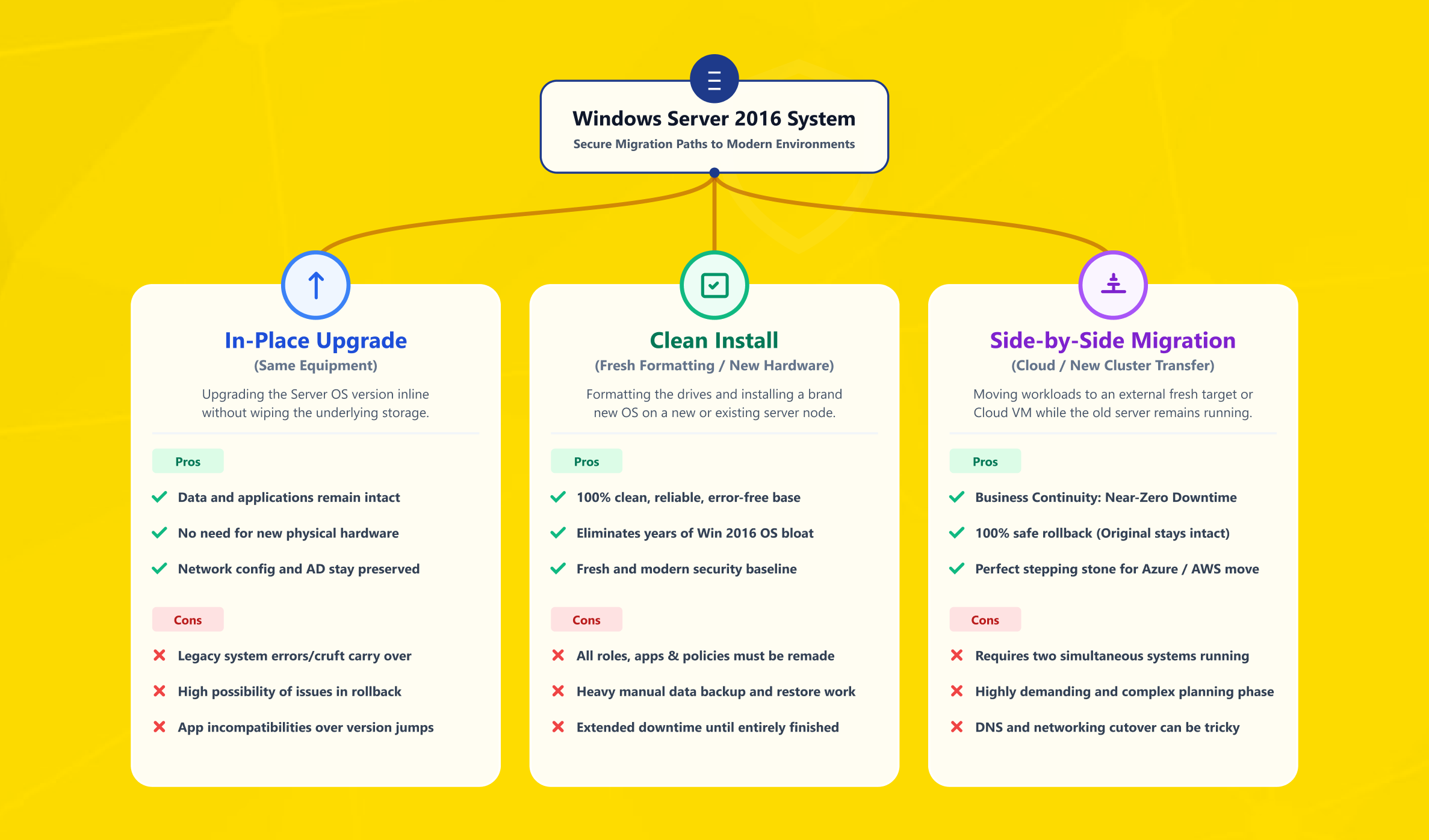
For most businesses, the practical options are in-place upgrade, clean installation, or migration to a new server environment.
In-Place Upgrade
An in-place upgrade moves the existing server from Windows Server 2016 to a newer version. At the same time, it keeps settings, server roles, and data in place. Microsoft describes in-place upgrade as a way to keep the environment intact while moving to a supported version. It also brings newer security and performance capabilities.
This option can be attractive when the server configuration is complex or documentation is limited. It can also be a strong choice when downtime needs to stay short. It can work well for certain application servers, file servers, or internal systems. This is especially true when the existing setup is healthy and compatible.
Microsoft’s supported upgrade path table shows that Windows Server 2016 can be upgraded directly through installation media. Supported target versions include Windows Server 2019, Windows Server 2022, and Windows Server 2025. Microsoft also notes a key distinction for Windows Server 2025. Nonclustered systems can upgrade up to four versions at a time, while cluster rolling upgrades can move forward only one version at a time.
However, an in-place upgrade should not be treated as a shortcut without preparation. Microsoft lists several prerequisites, including administrative rights, a full backup, a scheduled maintenance window, hardware compatibility, and application compatibility checks. It also warns that Active Directory Domain Controllers are an exception. Even though most Windows Server roles support in-place upgrade, domain controllers should not be upgraded this way.
Clean Installation
A clean installation means installing a newer Windows Server version from scratch, then reinstalling roles, applications, data, and configuration. This approach usually takes more planning, but it gives the business a cleaner technical foundation.
Clean installation is useful when the existing server has accumulated years of configuration changes, unused services, performance issues, or unclear dependencies. It is also a good option when hardware is being replaced or the storage architecture is changing. It can also make sense when the business wants to standardize its server build process.
The main disadvantage is migration effort. Teams must document services, export configurations, move data, validate permissions, reinstall applications, and test user access. For small teams, this can be demanding. For long-term reliability, however, it is often the better investment.
Migration or Replatforming
Migration means moving roles, data, and applications from Windows Server 2016 to a new server environment. That environment can be a virtual server, cloud server, dedicated server, or a hybrid architecture.
This is often the best path when the existing server depends on aging hardware or limited storage. It also makes sense when the network design is outdated or backup practices are weak. Instead of upgrading the old operating system in place, the business builds a new environment first. It then moves workloads in a controlled sequence.
Migration also creates an opportunity to improve security architecture. You can introduce better segmentation and update firewall rules. You can also strengthen backups, disaster recovery, monitoring, and workload separation.
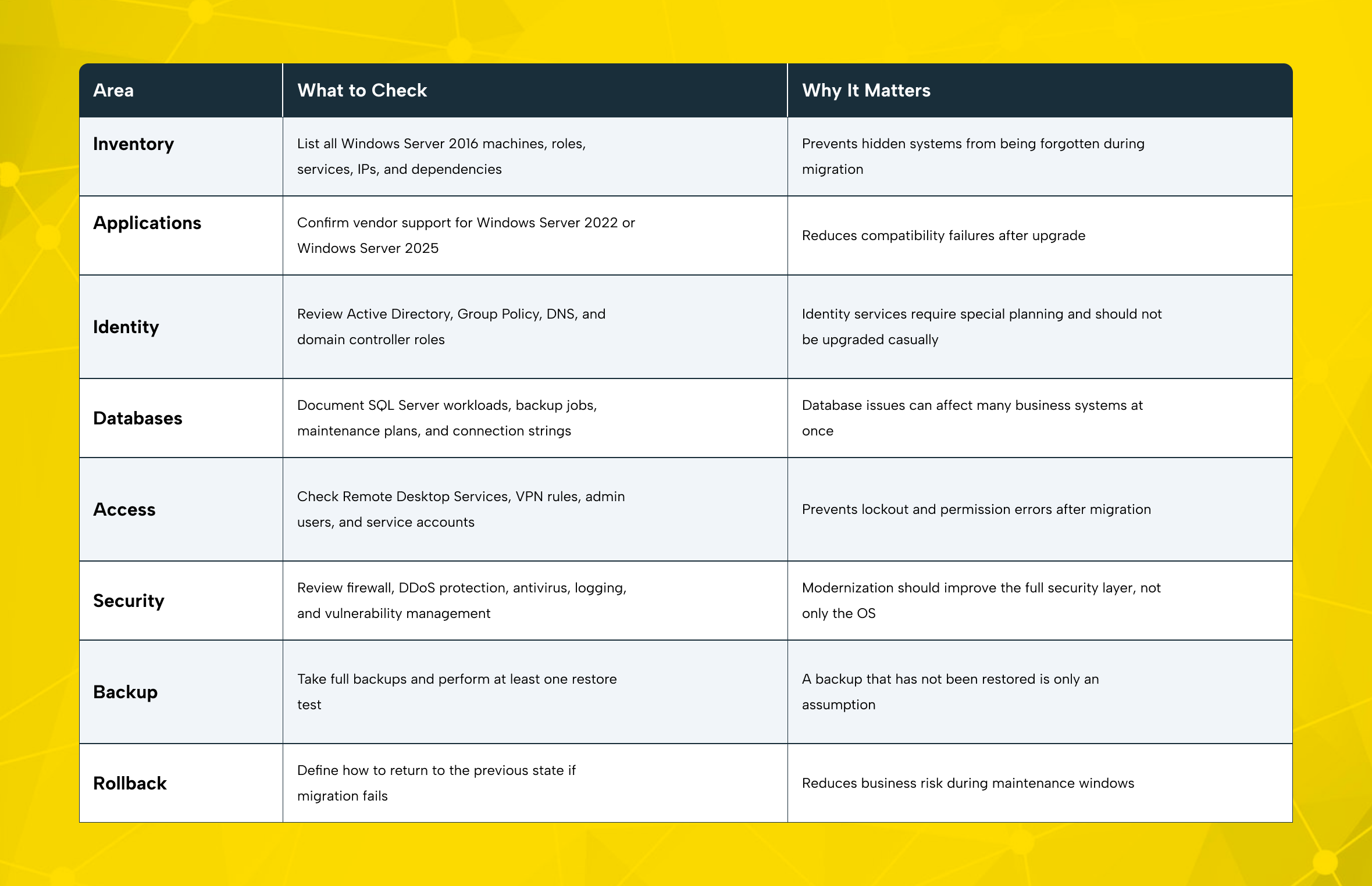
Technical Box: Migration Readiness Checklist
Windows Server 2016 geçiş hazırlık kontrol listesi
Choosing Between Windows Server 2022 and Windows Server 2025
Many businesses moving from Windows Server 2016 will evaluate Windows Server 2022 and Windows Server 2025. Both can be valid targets, but the best choice depends on your application ecosystem and support horizon.
Windows Server 2022 is often attractive for businesses that want a mature platform with broad vendor familiarity. Microsoft lists its extended end date as October 14, 2031. This makes it a practical option for organizations that want a stable, widely adopted target while avoiding the immediate operational risk of staying on Windows Server 2016.
Windows Server 2025 offers the longer lifecycle window. Microsoft lists Windows Server 2025 under the Fixed Lifecycle Policy, with extended support ending on November 14, 2034. It may be the stronger option for organizations that want the latest Windows Server generation and are ready to validate application compatibility.
A simple decision model can help:
- Choose Windows Server 2022 if your applications are certified for it, your vendors recommend it, and you prefer a mature ecosystem.
- Choose Windows Server 2025 if you want the longer support window, your workloads are compatible, and your IT team is ready for the newest platform.
- Choose cloud migration or virtual server migration if your existing hardware is old, scaling is difficult, or you want infrastructure flexibility.
- Choose dedicated server hosting if you need isolated resources, predictable performance, or strict workload separation.
- Choose a phased migration if the current environment includes complex dependencies, domain services, databases, and legacy applications.
Do not select the target version only by support date. Check application certification, driver compatibility, licensing, management tooling, backup platform support, and internal team readiness before deciding.
What SMEs, E-Commerce Companies, and Agencies Should Prioritize
Windows Server 2016 upgrade planning should be shaped by business context. The same technical decision can mean different things for a small business, an e-commerce company, or an agency managing multiple client environments.
SMEs: Keep the Plan Simple and Recoverable
SMEs usually need a practical path with limited complexity. The first step is to identify which Windows Server 2016 systems are still in use and what they support. A small business may have one server doing too much: file sharing, domain services, accounting software, remote access, and database hosting.
In this case, modernization should reduce concentration risk. Instead of moving everything as-is, consider separating workloads. For example, a dedicated or virtual server can host business applications, while backup and security services are handled as separate layers.
The priority is not to build the most complex architecture. The priority is to create a manageable, secure, and recoverable environment.
E-Commerce Firms: Protect Uptime and Transaction Flow
For e-commerce companies, downtime directly affects revenue. A Windows Server 2016 migration should be planned around traffic cycles, campaign periods, payment processes, stock integrations, marketplace connections, and customer support workflows.
The best approach is usually staged migration. Test the new environment, move non-critical components first, validate performance, then schedule production cutover during a low-traffic window. Backup strategy and disaster recovery should be verified before any major operating system change.
Cloud server or virtual server infrastructure can be useful for e-commerce teams that need scalable resources, faster provisioning, and easier recovery options.
Agencies and Corporate Brands: Standardize Infrastructure
Agencies and corporate brands often manage multiple projects, internal systems, or client-facing environments. In these cases, Windows Server migration is also an opportunity to standardize.
A standardized approach can include:
- Consistent server naming
- Documented firewall rules
- Centralized backup policies
- Separated staging and production environments
- Defined access control
- Monitoring and alerting
- Repeatable deployment steps
This reduces operational friction and makes future upgrades easier. It also helps technical teams onboard new projects without rebuilding the same infrastructure logic from scratch each time.
How Makdos Helps Businesses Move Beyond Windows Server 2016
Moving away from Windows Server 2016 is not only an operating system task. It is an infrastructure decision. The right provider can help businesses reduce risk, choose suitable resources, and build a more secure foundation for daily operations.
Makdos supports this process with server and security services that fit different migration scenarios. A business that wants a flexible environment can evaluate Makdos Virtual Server Rental or Makdos Cloud Server Rental. These options are useful when the existing physical server is aging, when fast provisioning is needed, or when workloads need scalable resources.
For workloads that require isolated hardware resources, predictable performance, or more direct control, Makdos Dedicated Server Hosting can be a better fit. This is especially relevant for database-heavy systems, high-traffic applications, custom enterprise software, and organizations that prefer single-tenant infrastructure.
Security should be part of the migration plan from the beginning. Upgrading from Windows Server 2016 to a newer platform reduces lifecycle risk, but it does not remove the need for layered protection. Makdos Firewall and Security services can support the new environment with network-level protection, DDoS protection, firewall rules, and security-focused infrastructure design.
Makdos can also support businesses that want to move gradually. For example, a company may first create a new virtual server, test its application stack, move data, validate user access, and then switch production traffic after approval. This approach lowers disruption and gives teams time to confirm performance before retiring the old Windows Server 2016 system.
The goal is not simply to “replace a server.” The goal is to create an infrastructure that is easier to secure, easier to scale, and easier to manage.
A Practical Migration Plan for Windows Server 2016
A strong Windows Server 2016 migration plan should be structured and testable. Even a small environment benefits from written steps, clear ownership, and rollback options.
Start with discovery. Identify every server running Windows Server 2016, including virtual machines, physical servers, test environments, and forgotten internal systems. Then classify each server by business impact. A file archive server does not carry the same risk as a domain controller or production database server.
Next, define the target platform. Decide whether the workload should move to Windows Server 2022, Windows Server 2025, a virtual server, cloud server, dedicated server, or a redesigned architecture. This is where licensing, hardware status, application compatibility, and budget should be reviewed together.
After that, prepare backups and test restores. A full backup is essential, but a restore test is what confirms that recovery is possible. For business-critical systems, include data, configuration, applications, service accounts, certificates, scheduled tasks, and firewall rules in the backup and documentation plan.
Then build a test environment. For complex applications, test migration before production cutover. Validate login flows, database connections, scheduled jobs, remote access, email notifications, API integrations, and performance under realistic load.
Finally, schedule the production move. Communicate the maintenance window, assign responsibilities, monitor logs during the migration, and validate services immediately after completion. Keep the old environment available until the new environment has been tested and approved.
Common Mistakes to Avoid
The first mistake is waiting until the support deadline is too close. Server migrations usually take longer than expected because hidden dependencies appear during testing.
A legacy application may require an older framework. A service account may be undocumented. A backup may fail to restore. A firewall rule may have been added years ago and forgotten.
The second mistake is focusing only on the operating system. Windows Server 2016 may be the visible risk, but the wider environment may include outdated database versions, weak remote access policies, unsupported backup agents, or poor monitoring. A migration should improve the whole operational model.
The third mistake is upgrading production without a rollback plan. Even supported in-place upgrades can fail because of drivers, applications, storage issues, or configuration conflicts. A rollback plan should be written before the maintenance window starts.
The fourth mistake is ignoring security after migration. A newer Windows Server version is a stronger foundation, but it still needs patch management, firewall rules, access control, logging, vulnerability management, and tested backups.
The final mistake is choosing the target platform based only on price. Cost matters, but so do uptime, performance, support, scalability, and recovery. For e-commerce firms, agencies, and SMEs, the cheapest server can become expensive if it creates downtime or operational risk.
Conclusion: Start the Move Before Support Becomes a Problem
Windows Server 2016 can still run important workloads, but its lifecycle position requires action. Mainstream support has already ended, extended support ends on January 12, 2027, and Microsoft has positioned ESU as a transition option rather than a long-term modernization strategy.
The right next step depends on your environment. Some businesses can use an in-place upgrade. Others should choose a clean installation or migrate to a new virtual, cloud, or dedicated server. The safest path is the one that includes inventory, compatibility checks, tested backups, security review, and a clear cutover plan.
Makdos helps businesses turn this process into a more controlled infrastructure decision. Whether you need a virtual server, cloud server, dedicated server, or additional firewall and DDoS protection, you can plan your Windows Server 2016 transition with a foundation designed for security, performance, and operational continuity.
If your infrastructure still depends on Windows Server 2016, start by reviewing your server inventory and identifying the workloads that need a safer long-term home. Then compare Makdos server options and choose the environment that fits your workload, budget, and growth plan.