

Modern systems silently accumulate “digital clutter.” Servers run 24/7, and small leftovers from updates, deployments, downloads, and monitoring gradually accumulate. Over time, this buildup can cause slow I/O, full disks, messy logs, and unnecessary security risks.
The goal of cleanup isn’t to “delete everything.” It’s to keep only what the business needs so your server stays predictable, debuggable, and secure.
This approach applies across server types (virtual servers, cloud servers, and dedicated servers). The tools may vary from system to system.
However, the core hygiene principles remain the same. First, identify what is consuming disk space. Then remove what is no longer needed and automate recurring tasks.
Why digital cleanup matters (especially for SMBs and e-commerce)
If you’re a small or mid-sized business, an e-commerce brand, or an agency managing multiple clients, your risk profile is straightforward. Downtime directly impacts both revenue and reputation. A single “disk full” incident can take down checkout flows, APIs, or back-office apps. Even when nothing crashes, clutter can make your web pages load slower because caching layers and storage I/O start to struggle.
A lightweight routine makes a big difference. Weekly checks and a deeper monthly cleanup help prevent common “silent failures” and keep server maintenance predictable.
Before you remove files, take a recent backup and verify you can restore it. Cleanup is safest when rollback is possible.
1) Disk cleanup (server storage hygiene)
Disk cleanup is the foundation of server performance. Over time, unused installers, old export files, forgotten backups, and abandoned project folders pile up. A nearly full OS disk can destabilize a server. Services may crash, updates might fail, and databases can stop writing data.
A simple disk cleanup workflow:
- Identify the largest folders and files first (big wins come fastest).
- Classify what you find: required, archivable, deletable.
- Archive business-critical history off the server.
- Delete true leftovers (installers, duplicates, outdated exports).
Linux quick checks (examples):
- du -sh /* to spot large directories quickly
- du -a / | sort -n -r | head -n 20 to list the biggest items
- Use sudo apt-get remove --purge to delete unnecessary packages and old kernels.
- sudo apt-get clean to clear package cache
Windows quick checks (examples):
- Use Disk Cleanup / cleanmgr to remove temporary files and system leftovers.
- Review the Recycle Bin, temp directories, and application caches.
Don’t delete blindly. If you’re unsure about a directory, pause before deleting it. Review it first instead of removing it immediately. Move it to a quarantine or archive folder and monitor the system for a week before deleting it permanently.
“Freeing space fast” is where most accidents happen. Avoid deleting system directories, database data paths, or application storage folders unless you know exactly what they do.
2) Log cleanup and log rotation
Logs help you monitor your system until you neglect to manage them. Web servers, app platforms, and operating systems produce access logs, error logs, audit logs, and debug traces. Left unchecked, they can grow into gigabytes and consume storage that your server needs for real workloads.
Log cleanup best practices:
- Keep recent logs (last weeks or months) for troubleshooting.
- Compress and archive older logs off the server.
- Turn on log rotation so logs don’t grow forever.
Linux: logrotate can rotate, compress, and remove logs on a schedule.
Windows: use Event Viewer policies (and retention settings) to prevent uncontrolled growth.
A good rule of thumb: keep enough log history to diagnose incidents, but not so much that logs become the incident.
3) Temp and cache cleanup
Operating systems and applications create temporary files and caches to speed things up. The issue is that “temporary” often turns permanent unless you clean it regularly.
What this step accomplishes:
- Frees disk space without touching business data
- Reduces weird app behavior caused by corrupted caches
- Keeps the server responsive during updates and deployments
Windows: cleaning temporary files and app caches
On Windows servers, Disk Cleanup helps remove items like temporary files, thumbnails, and other safe-to-delete artifacts. Also review application-level caches (browser caches on GUI servers, installer caches, and temporary download locations).
Linux: package cache and service caches
On Linux servers, package managers often store downloaded package files (for example, under /var/cache). Cleaning those caches can reclaim space.
Begin by verifying whether caching is active. Then review the web server cache directories as part of your checks. This includes reverse proxy cache locations.
Databases: don’t forget binary logs and temp tables
Database servers can accumulate large temporary tables or binary logs over time. In MySQL environments, you can remove older binary logs. This helps free up valuable disk space. However, always verify your replication and backup requirements before deleting any log history.
Deleting database logs without confirming replication and backup needs can cause data loss or break recovery workflows. If you’re unsure, stop and validate your retention policy first.
4) Snapshot cleanup (virtual and cloud environments)
Snapshots are extremely useful before major changes but they are not a long-term backup strategy. A snapshot stores changes relative to a point in time. The longer you keep it, the larger it can grow, and the more it can impact performance (especially storage I/O).
Snapshot hygiene habits:
- Take a snapshot before risky changes.
- Test and confirm the change.
- Remove the snapshot once you’re confident.
If you rely on snapshots as “backup,” you’re one mistake away from a painful recovery story. Use real backups for long-term protection.
5) Security scanning (cleanup is also risk reduction)
Digital cleanup is not only about speed. It’s also about reducing attack surface. Old installers, leftover scripts, abandoned user accounts, and unpatched services can become entry points.
Practical security cleanup steps:
- Scan for malware/rootkits where appropriate.
- Patch OS and applications regularly.
- Close unused ports and remove unused services.
- Remove or disable stale user accounts and old SSH keys.
If you schedule weekly scans (and review reports), you’ll catch issues earlier before they become incidents.
6) Downloads and desktop organization (GUI servers)
If your server uses a graphical interface, which is common with Windows Server, certain folders can easily become cluttered. The Downloads folder and desktop often turn into storage areas for unused files. Old installers and test files are easy to overlook. Yet they continue to consume disk space and increase the risk of someone using the wrong file later.
Keep it simple:
- Review user profile Downloads folders regularly.
- Deploy the software first. Then remove the old installers to free up space.
- Keep “reference installers” in a clearly named and controlled storage folder not on the desktop.
In multi-user environments, apply policies to automatically clean Downloads folders on a regular basis.
7) Archive large files (and consider database housekeeping)
Large files are usually where you reclaim the most space:
- Old backup images
- Forgotten exports and reports
- High-resolution media uploads
- Old log archives
Archive what you need and move it off the production server. Compressing text-heavy files (like logs) typically shrinks them dramatically.
Database housekeeping belongs here too. If your system stores years of historical records, tables can bloat. Archiving older records (to an archive table or external storage) keeps the production database lean and improves query performance.
8) Browser history and cache (for GUI servers)
In some cases, you may need to use a browser on a server but this increases security risks. Browsers store session tokens, cookies, and cached content. If multiple admins share the same environment, that’s a real exposure.
Good hygiene:
- Log out of critical accounts (admin panels, payment dashboards) after use.
- Clear browser history, cache, and cookies.
- Avoid “remember me” or saved-password features on a server.
9) File naming and versioning
Cleanup isn’t only deletion. It’s also organization. Poor naming creates duplicates, confusion, and “final-final-v3” chaos that clutters a server and slows teams down.
A simple naming convention helps:
- Include purpose + date (YYYY-MM-DD) + version if needed
- Keep files grouped by project/application
- Avoid keeping unlimited old versions in the same folder
For configuration files and scripts, consider Git-based version control. It tracks changes cleanly and reduces the need to store endless manual copies on the server.
10) Session hygiene (SSH/RDP and account cleanup)
A clean server is also a server with controlled access. Long-running sessions, forgotten accounts, and idle RDP connections increase risk and waste resources.
Session hygiene checklist:
- End idle RDP sessions and close abandoned SSH sessions.
- Review active users regularly.
- Apply session timeouts where possible.
- Remove accounts for users who no longer need access.
On Linux, commands like who or w help you see active sessions. On Windows, regularly review active RDP users and terminate sessions that are no longer needed.
Server cleanup automation
You can keep your server clean manually, but automation makes it consistent:
Windows (PowerShell + Task Scheduler)
- Schedule a weekly job to clear temp directories, archive logs, and generate a cleanup report.
- You can also automate Disk Cleanup (cleanmgr) safely with predefined settings.
Linux (Bash + cron)
- Schedule a job to remove old temp files (example logic: delete files older than X days under /tmp).
- Combine this with logrotate to rotate and compress logs automatically.
Monitoring and alerts
- Set disk-usage alerts (for example at 80–90%) so you act before a server hits “disk full.”
Test your automation carefully. Validate each step before deploying it in production. Always start with reporting-only mode before enabling deletion.
Treat cleanup automation like production code: test, review, and monitor it. A single wrong path can delete critical data.
How Makdos helps you keep your server clean, fast, and secure
You can do digital cleanup yourself. But for many teams, the real challenge is consistency: keeping maintenance happening while the business moves fast.
Makdos supports server operations through automation, monitoring, security services, and expert guidance. This ensures cleanup becomes a structured, repeatable routine rather than a one-time task.
What you gain with Makdos-oriented server management:
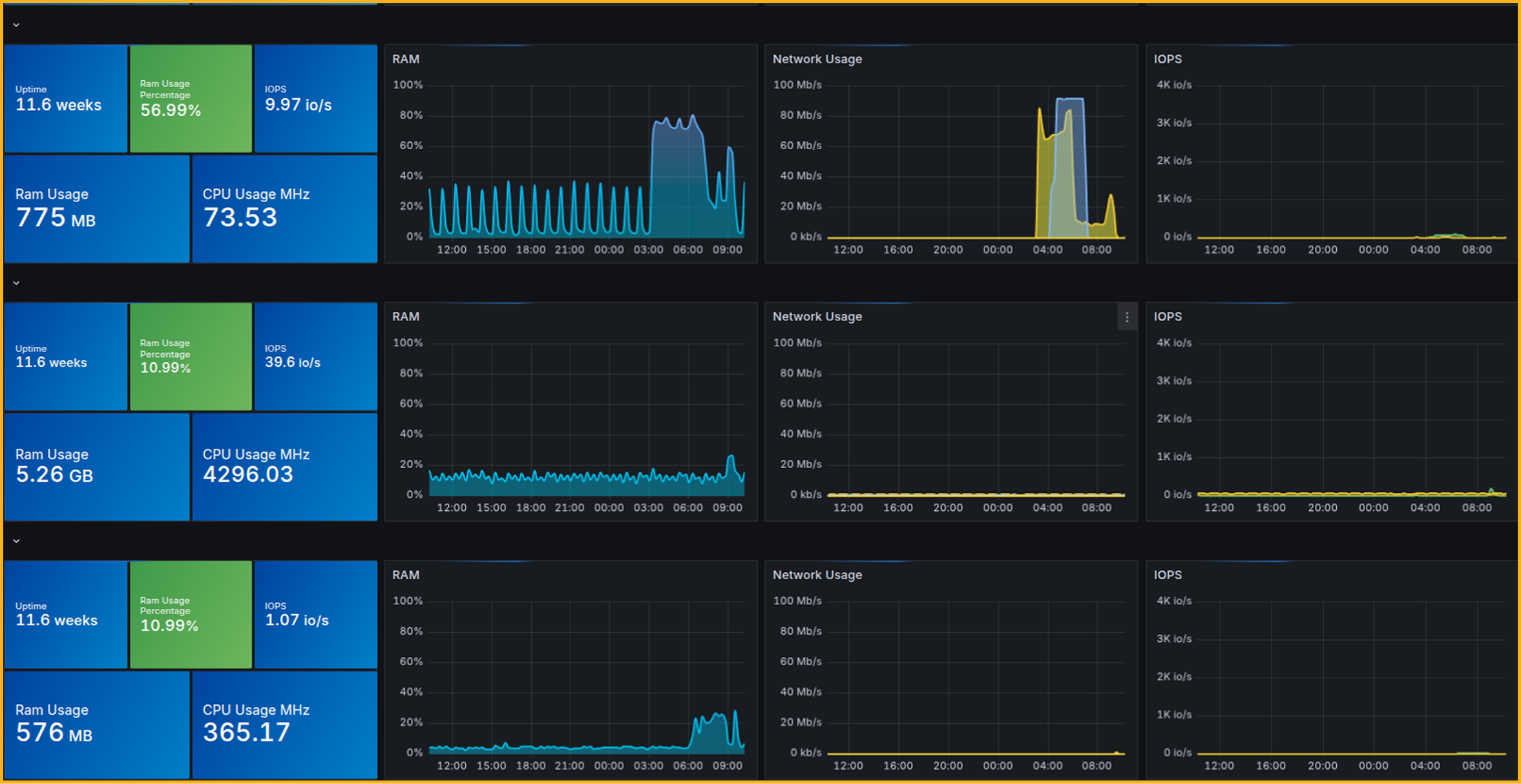
- Proactive monitoring: track CPU, RAM, and disk usage, with alerts before resources become critical.
- Backup planning: schedule backups and keep restore options ready when cleanup or updates go wrong.
- Security hardening: firewall and DDoS protection options to reduce noise, risk, and downtime.
- 24/7 support: get help when logs suddenly explode, a disk fills up overnight, or a suspicious login appears.
Makdos also offers a user-friendly control panel and mobile access. This allows you to monitor and manage critical server tasks without being limited to a single device.
Conclusion
A “clean server” is not about perfection. It’s about keeping things stable and consistent. Clean disk clutter, rotate logs, manage cache, remove old snapshots, scan for risks, and control sessions regularly. This keeps your system healthy.
As a result, overall stability increases. As a result, your server runs more smoothly. It becomes easier to manage and less vulnerable to unexpected issues.
Start with a simple cadence:
- Weekly: logs + temp/cache + quick disk review
- Monthly: deep disk cleanup + snapshot review + security review
- Ongoing: monitoring alerts and a clear backup strategy
If you want to maintain consistent server maintenance without increasing your team’s workload, Makdos can support you. With monitoring, security, backups, and managed support, cleanup becomes a natural part of your day-to-day workflow.
Build your next server on Makdos and keep it healthy with a clean, automated maintenance routine.