
Windows Server 2019 shipped in November 2018 and remains a mature, widely deployed release. This version arrived in August 2021 and introduced a longer support window along with a meaningfully stronger security baseline. Neither version is going away soon, so the real question is not which one is newer. For most IT teams, the question is which one fits their roadmap, compliance requirements, and existing licensing agreements.
This guide breaks the comparison into support timelines, security, Azure and hybrid cloud features, virtualization performance, and licensing. It then closes with a practical recommendation for different types of businesses.
Support Timelines: How Long Will Each Version Last?
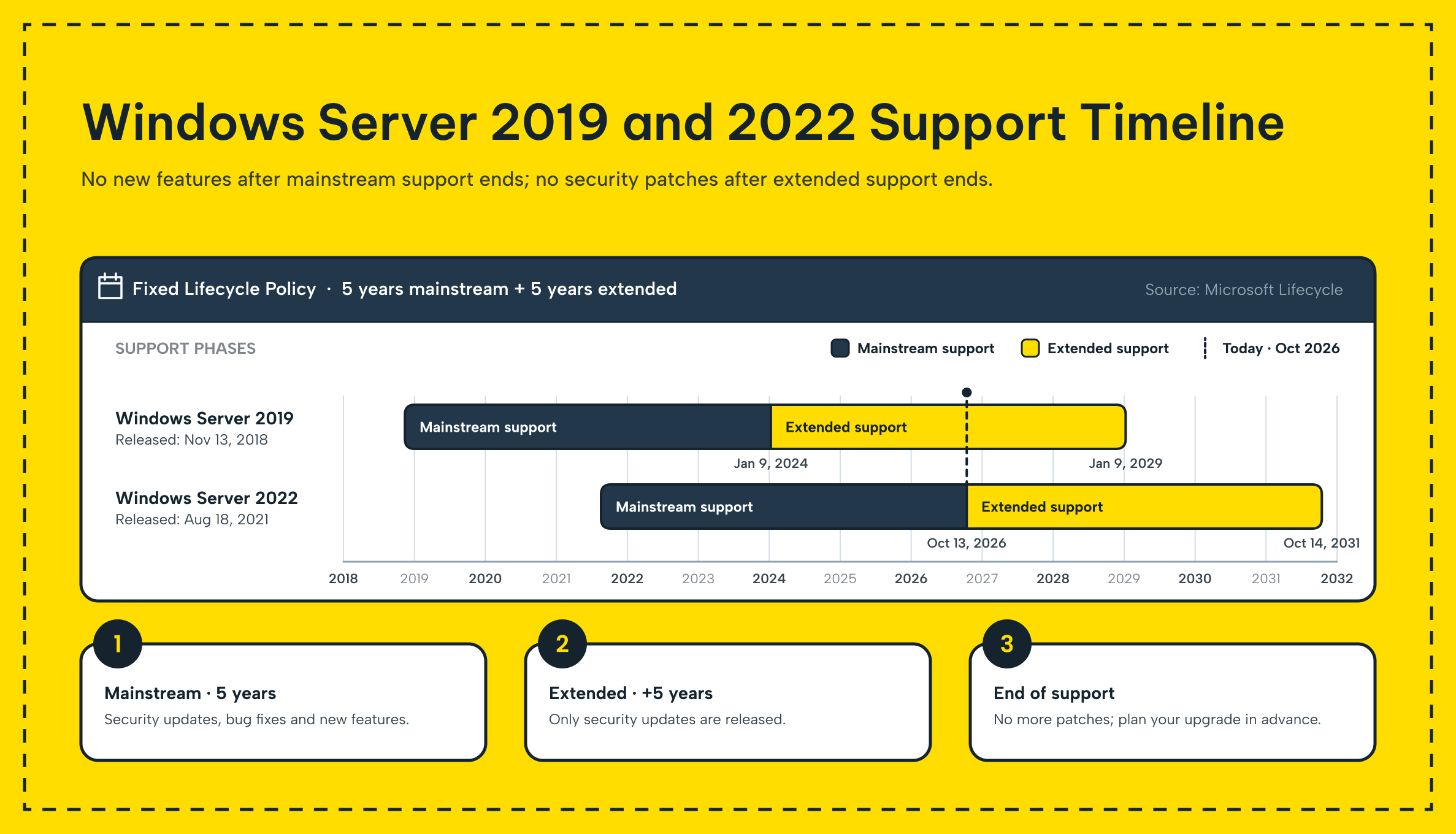
Every Windows Server release follows Microsoft's Fixed Lifecycle Policy. This policy guarantees five years of mainstream support. It is followed by five years of extended support. According to Microsoft's official lifecycle documentation, the confirmed dates are:
- Windows Server 2019: mainstream support ends January 10, 2024. Extended support runs until January 10, 2029.
- Windows Server 2022: mainstream support ends October 14, 2026. Extended support runs until October 15, 2031.
In practice, Windows Server 2022 gives you roughly two extra years of coverage compared with the previous one. If you plan a refresh with a five-year or longer horizon, that gap alone can tip the decision. The newer release wins because extended support only delivers security patches, not new features or non-critical fixes.
Security and Active Directory: What Actually Changed
This is where the two releases diverge the most. Windows Server 2022 was built around the idea of a secured-core one. It combines firmware protection, virtualization-based security and a hardware root of trust into one hardening profile. Windows Server 2019 simply does not offer that profile out of the box.
Other security upgrades in Windows Server 2022 include:
- Transport Layer Security 1.3 enabled by default, replacing older, weaker cipher suites used for encrypted connections.
- DNS-over-HTTPS (DoH) support, which stops DNS queries from traveling across the network in plain text.
- SMB encryption upgraded to the AES-256 standard, a meaningful step up from the AES-128 used in earlier releases.
- Windows Defender running with updated detection engines and closer integration with Microsoft Defender for Endpoint.
- Microsoft Edge replacing Internet Explorer as the built-in browser, which closes off a long-standing attack surface.
Active Directory itself is less of a differentiator. Both Windows Server 2019 and 2022 top out at the Windows Server 2016 domain and forest functional level. Upgrading them will not unlock new AD schema features on its own.
If Active Directory modernization is your primary driver, the OS version matters less. Your directory design and hygiene matter much more than the OS version.
Workloads that handle sensitive data, process payments, or must meet current encryption requirements need a stronger security foundation. In these cases, Windows Server 2022 is the better starting point.
Azure Integration and Hybrid Cloud Features
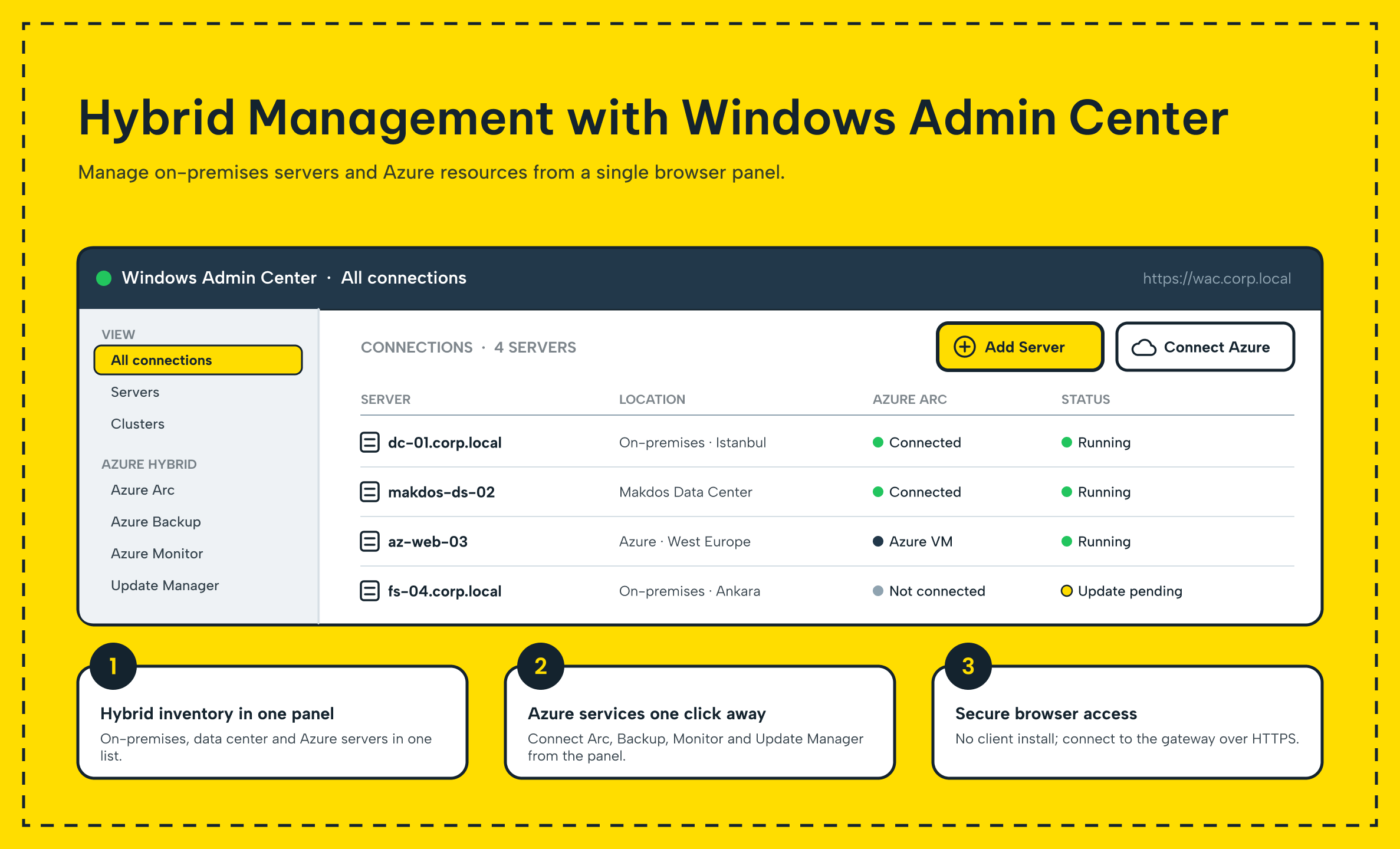
Windows Server 2022 was designed with hybrid environments in mind, and it shows. Azure Arc is now deeply integrated rather than bolted on. It makes managing on-premises ones alongside Azure resources far easier from a single control plane.
Storage Migration Service was improved for smoother lift-and-shift moves. Windows Admin Center gained new panels for monitoring and managing hybrid workloads without switching tools.
Two features worth calling out specifically:
- SMB over QUIC keeps file shares accessible over the internet without requiring a VPN. Instead, it protects connections with QUIC’s built-in encryption.
- Hotpatching, available through Azure Edition, applies certain security updates without a reboot. This is a meaningful advantage for ones that cannot tolerate frequent downtime windows.
Windows Server 2022 also extended its Software Defined Networking (SDN) capabilities. This gives network teams more flexibility to manage virtual networks, load balancing, and micro-segmentation. These tasks run largely in software rather than through dedicated hardware.
None of this hybrid tooling is available on Windows Server 2019 with the same depth. The platform predates most of Azure Arc's current feature set.
Virtualization and Hyper-V Performance
If your ones run Hyper-V, the performance gap between the two releases is one of the more concrete arguments for upgrading. Windows Server 2022 added support for running nested Hyper-V on AMD processors. Before this release, this type of support existed only on Intel hardware. Live migration performance was also tuned, so moving running virtual machines between hosts causes less disruption.
Two virtualization security features carry over from Server 2019 but are more consistently available across the 2022 deployments:
- Shielded virtual machines protect VM data from unauthorized access in shared environments.
- vTPM (virtual TPM 2.0) is included by default. It supports BitLocker and other features that require a hardware-based security foundation within a virtual machine.
Storage also improved meaningfully. Storage Spaces Direct is Microsoft's software-defined storage layer for building resilient, shared storage out of local disks. The new version received performance and resiliency updates that make it a more realistic option for hyper-converged deployments.
The Core image shrank by roughly 25 percent on the footprint side, from 3.7 GB to 2.7 GB. This smaller size speeds up deployment and patching across large VM fleets.
Host Process Containers, also added in this release, give container workloads host-level access. A workload gets this access only when it genuinely needs it. It does not require a full privileged container.
Installation Options, Server Roles and Licensing
Installation options and management model
Both releases offer either streamlined Server Core or a full desktop experience. This type remains the recommended installation option for most production roles. It has a smaller attack surface and needs fewer patches.
Windows Server 2022 makes Server Core easier to live with day to day. Windows Admin Center has matured into a genuinely capable browser-based console. It manages services, storage, networking and these roles remotely, so administrators rarely need the desktop UI.
They only fall back on it for a familiar user interface on routine tasks. Server Core App Compatibility is also a Feature on Demand for core installations. It lets a wider range of classic GUI-based tools run without pulling in the entire desktop shell. This closes one of the more common complaints about earlier releases.
Licensing model and RDS CALs
Both Windows Server 2019 and the other one use the same core-based licensing model. It comes in Standard and Datacenter editions. The standard editions cover physical and lightly virtualized workloads with up to two virtual machines per license.
The Datacenter edition covers unlimited virtualization and adds features such as Storage Spaces Direct and Shielded VMs. The edition you need depends on how virtualized your environment already is, not on which one you choose.
Remote Desktop Services (RDS) licensing is where migration planning gets more complicated. RDS CALs are tied to the one they were purchased for, and they are not automatically forward-compatible. In practice this means:
- Windows Server 2019 RDS CALs do not grant access to a Windows 2022 RDS deployment.
- Moving to this release typically requires purchasing new RDS CALs, unless your organization already holds Software Assurance. This benefit can include rights to upgrade to the current CAL version.
- Before budgeting a migration, confirm current terms with Microsoft or a licensing partner. Software Assurance benefits and CAL rules can change between agreements.
Windows Server 2019 vs 2022: Feature Comparison
| Feature | Windows Server 2019 | Windows Server 2022 |
|---|---|---|
| Mainstream support ends | January 10, 2024 | October 14, 2026 |
| Extended support ends | January 10, 2029 | October 15, 2031 |
| Secured-core server | No | Yes |
| TLS 1.3 by default | No | Yes |
| Azure Arc integration | Basic | Deep |
| Nested Hyper-V on AMD | No | Yes |
| Server Core image size | ~3.7 GB | ~2.7 GB |
| Hotpatching | No | Azure Edition only |
The practical result is simple. The newer one leads on almost every technical axis. Windows Server 2019's real advantage is that it's already deployed, already licensed, and already familiar to your team.
Which Version Fits Your Business?
Choose Windows Server 2022 if
- (madde) You are deploying new ones or standing up a new environment from scratch.
- Your industry or customers require current encryption and endpoint protection standards.
- You are actively building toward an Azure or hybrid cloud architecture.
- Your workloads depend heavily on Hyper-V, containers or shared storage.
- You want the longest possible runway before the next mandatory migration, since support runs until 2031.
Windows Server 2019 remains acceptable if
- Your current environment is stable, patched and not showing operational problems.
- You are not planning a hardware refresh or major infrastructure change in the near term.
- A legacy application has a hard compatibility requirement that has not yet been validated against Server 2022.
- Extended support until January 2029 still gives you a comfortable multi-year runway.
For SMEs and growing teams
Before migrating, smaller IT teams often do not have the bandwidth. They cannot test every application against a new operating system. If that describes your situation, there is no urgent reason to move off Windows Server 2019 today.
Plan the migration around your next hardware refresh or major application upgrade. Use the time to validate line-of-business software, backup tooling, and RDS licensing changes. Do all of this ahead of the move, not around a version number.
How Makdos Helps You Run Windows Server
The operating system is only half of the equation, whichever version you choose. The underlying infrastructure itself matters just as much to the overall result. Makdos offers Windows Server 2019 and 2022 as ready-to-deploy options on its virtual servers. You can launch either edition in minutes without waiting for hardware or completing a manual installation.
Some workloads require dedicated resources, complete hardware isolation, or more flexible licensing than shared virtual environments can provide. Our dedicated servers support both Standard and Datacenter editions for these needs. Direct KVM/iDRAC access also enables hands-on server management.
Businesses can run Windows Server on our cloud servers without committing to fixed hardware. As Hyper-V or container workloads grow, they can adjust CPU, RAM, and storage to match demand.
Our support team can help plan the migration, from RDS CAL questions to scheduling a low-risk cutover window. This way the version you settle on gets deployed correctly the first time.
Conclusion: Making the Call Between 2019 and 2022
Windows Server 2019 and the other one are both solid, fully supported choices today, but they are not equivalent. This release pulls ahead on security, Azure integration, and virtualization performance.
It buys roughly two more years before the next mandatory migration. It remains a reasonable choice for stable environments. They are not ready to move yet. You just need to track its January 2029 support deadline.
For new deployments, choose Windows Server 2022. If your existing system is running smoothly, there is no need to rush. Schedule the upgrade for your next natural refresh cycle instead of following an arbitrary date.
Makdos offers both versions preconfigured on its virtual servers. When you are ready, you can launch your preferred version immediately.